Create the destination mailboxes and copy the data across first. Only then do you touch DNS. Run an initial full sync, lower your TTL 24 to 72 hours ahead of cutover. Flip MX once mailboxes are populated, then run a final delta sync and update SPF, DKIM and DMARC for the new host immediately. Keep the old platform live throughout propagation so nothing gets stranded mid-transfer.
TL;DR:
- Lower TTL to a short interval 24 to 72 hours before cutover to accelerate DNS propagation and prevent caching delays.
- Create all destination mailboxes, configurations, and security keys before flipping MX records to avoid lost emails or delays.
- Use dedicated server-to-server tools for large migrations over 50 GB or with many mailboxes to ensure resilience and speed.
- Keep the old mail system operational during propagation, and verify full mail flow, permissions, and client access before final decommissioning.
- Focus on disciplined project governance, thorough testing, and clear communication to avoid overlooked permission issues and support bottlenecks.
Table of Contents
- What is the correct email domain migration process?
- How do TTL, MX, SPF, DKIM and DMARC fit together?
- Which migration method suits your mailbox sizes?
- How long does an email provider migration actually take?
- What happens during cutover and how do you roll back if it fails?
- What post-migration housekeeping actually matters?
- What Cloud 9 does differently on a managed migration
- Backup existing mailboxes and data before migration
- Consider coexistence strategies during migration
- Handle mailbox permissions and delegation settings
- Update email client and mobile device configurations
- Perform post-migration troubleshooting and monitoring
- The most overlooked step in a smooth migration can be avoided by following Site Migration SEO: A Local Checklist for Arizona Businesses, which underscores the importance of project governance and detailed planning.
- Ready to plan your email domain migration properly?
- Sources
- FAQ
What is the correct email domain migration process?
Every reliable email migration process follows the same four phases: discovery, setup, execution and post-migration. Skip the order and you get bounced mail, missing folders, or worse, a stretch where nobody can tell which server is actually receiving your company’s post.
Here’s the sequence that holds up under pressure:
- Inventory everything. List every mailbox, shared inbox, alias, distribution group and third-party integration that touches email (CRM, helpdesk, marketing automation). Missing one shared mailbox is the single most common cause of a “where did my emails go” panic call.
- Build the destination first. Create matching accounts in the new platform, set quotas to match or exceed current usage, and generate DKIM keys before you go anywhere near MX records.
- Run the initial sync. Use IMAP sync or a dedicated migration tool to copy the bulk of the data while the old system still receives live mail. Verify folder structures and item counts against the source.
- Schedule and communicate the cutover. Pick a low-traffic window, tell staff exactly when to expect a short blackout, then run the delta sync and flip MX.
Pro Tip: Run a pilot migration with a few test mailboxes, including one large “whale” account, before you commit the whole organisation. It surfaces throttling issues and permission errors while the stakes are still low.
How do TTL, MX, SPF, DKIM and DMARC fit together?
DNS sequencing decides whether your migration is boring or disastrous. Get the order wrong and mail starts routing to two places at once, a state engineers call split brain, where some senders see the old server and others see the new one.
The order that works:
- Lower TTL first. Drop your MX and related record TTLs to a short interval 24 to 72 hours before cutover, so any change propagates fast instead of sitting cached for a day.
- Create mailboxes before flipping MX. Changing MX before destination inboxes exist means incoming mail has nowhere to land.
- Update SPF and publish DKIM immediately once you commit to the new host, so outbound mail authenticates correctly from day one, following Google Workspace’s SPF, DKIM and DMARC setup guidance.
- Publish DMARC with p=none initially. Monitoring mode lets you read authentication reports without blocking legitimate mail while you confirm SPF and DKIM are aligned correctly.
Checking the authentication headers on a handful of test emails after cutover tells you within minutes whether SPF and DKIM are passing, rather than waiting for delivery complaints to surface the problem days later.
Which migration method suits your mailbox sizes?
The right method depends on how much data you’re moving and how much bandwidth and budget you can spare, not on which tool has the flashiest marketing page.
| Method | Best for | Key limitation |
|---|---|---|
| IMAP sync | Small to mid-sized businesses, under a few hundred mailboxes | Throttled by both source and destination servers; slow on large attachments |
| Export/import (PST, MBOX, Takeout) | One-off small migrations, archival needs | Needs significant local storage; manual and slow at scale |
| Server-to-server migration tools | Enterprise environments, hundreds of mailboxes | Licensing cost, but far faster and more resilient than manual methods |
A few things to weigh before picking one:
- IMAP sync typically copies data at a rate supported by Microsoft migration guidance, according to Microsoft’s mailbox migration documentation, so a large mailbox can take most of a working day.
- Export/import methods work fine for a handful of accounts but become unmanageable past 20 to 30 mailboxes.
- Whale mailboxes (anything over 50 GB, or a senior executive’s decade of email) deserve their own dedicated migration slot with extra bandwidth and closer monitoring, run separately from the main wave.
- Pilot the chosen method on two or three real mailboxes before scaling to the whole organisation.
How long does an email provider migration actually take?
Plan on four phases with distinct durations, not a single weekend sprint, however tempting that sounds to a stretched IT team.
- Discovery and assessment: 2 to 4 weeks. Inventory mailboxes, map integrations, confirm registrar access and document who owns DNS changes.
- Setup and configuration takes about a week. Build destination accounts, configure authentication, lower TTL, and prepare communication for staff.
- Execution: cutover week. Final sync, MX flip, and verification, ideally scheduled for a Friday evening or a quiet weekend.
- Post-migration monitoring lasts several weeks. Monitor mail flow, fix client configurations, and keep the old host on standby.
Provider throttling changes this timeline more than most admins expect. Google Workspace, for instance, imposes daily transfer limits that stretch large migrations across several days rather than hours, a detail confirmed in Superhuman’s migration guide for administrators. Registrar-imposed waiting periods on domain transfers add further delay, so confirm those windows with your registrar before you commit to a cutover date.
What happens during cutover and how do you roll back if it fails?
Cutover itself should take minutes; the verification that follows takes longer and matters more.
The sequence: run the final delta sync to capture anything sent since the initial copy, flip MX, then hold TTL low for a further day so any rollback propagates quickly if something breaks.
Verify these before declaring success:
- Inbound and outbound mail flow both directions correctly.
- Alias routing lands mail in the right inbox, not a black hole.
- Shared mailboxes remain visible to everyone with permission.
- Client logins (Outlook, mobile devices, webmail) authenticate without errors.
If verification fails, rollback is straightforward provided TTL is still low: revert MX to the old host, export any mail that landed on the new platform during the failed window, and import it back to source. Pro Tip: Keep the old host’s access live and untouched for at least a week after a successful cutover. It costs nothing and gives you a safety net if a delayed problem surfaces once real usage resumes.
What post-migration housekeeping actually matters?
The migration isn’t finished when mail starts flowing; it’s finished when nobody notices anything happened.
- Compare item counts between source and destination against your initial sync figures, and check audit logs for errors.
- Verify retention policies and archived data (Vault-style artefacts) carried across correctly.
- Recreate filters, rules and folder structures on the client side. These rarely transfer automatically, so budget real time per user rather than assuming they’ll survive the move.
- Update SSO, provisioning and any dynamic groups tied to the old directory.
- Reconfirm third-party integrations (CRM, helpdesk, marketing tools) point at the new mail servers.
- Set a decommission date for the old provider and check final billing before you cancel.
What Cloud 9 does differently on a managed migration
Cloud 9 treats every domain migration as a governed project, not a weekend DNS change. Each phase carries a signed-off verification gate; nothing moves to the next step until item counts match and authentication headers pass.
A migration succeeds or fails on project discipline, not on which tool copies the bytes. The gate that catches a missed shared mailbox before cutover is worth more than any sync speed claim.
A typical engagement covers discovery and inventory, destination setup with DKIM and domain configuration, initial and delta syncs, DNS and authentication handling, and two to four weeks of post-migration support. Businesses without in-house IT depth, or those juggling a migration alongside other projects, tend to get more value from outsourcing the DNS and authentication stages specifically, since a disordered SPF or DMARC change is the part most likely to cause silent deliverability problems. Cloud 9’s cloud migration support and Microsoft 365 support pages cover the specifics of that scope.
Backup existing mailboxes and data before migration
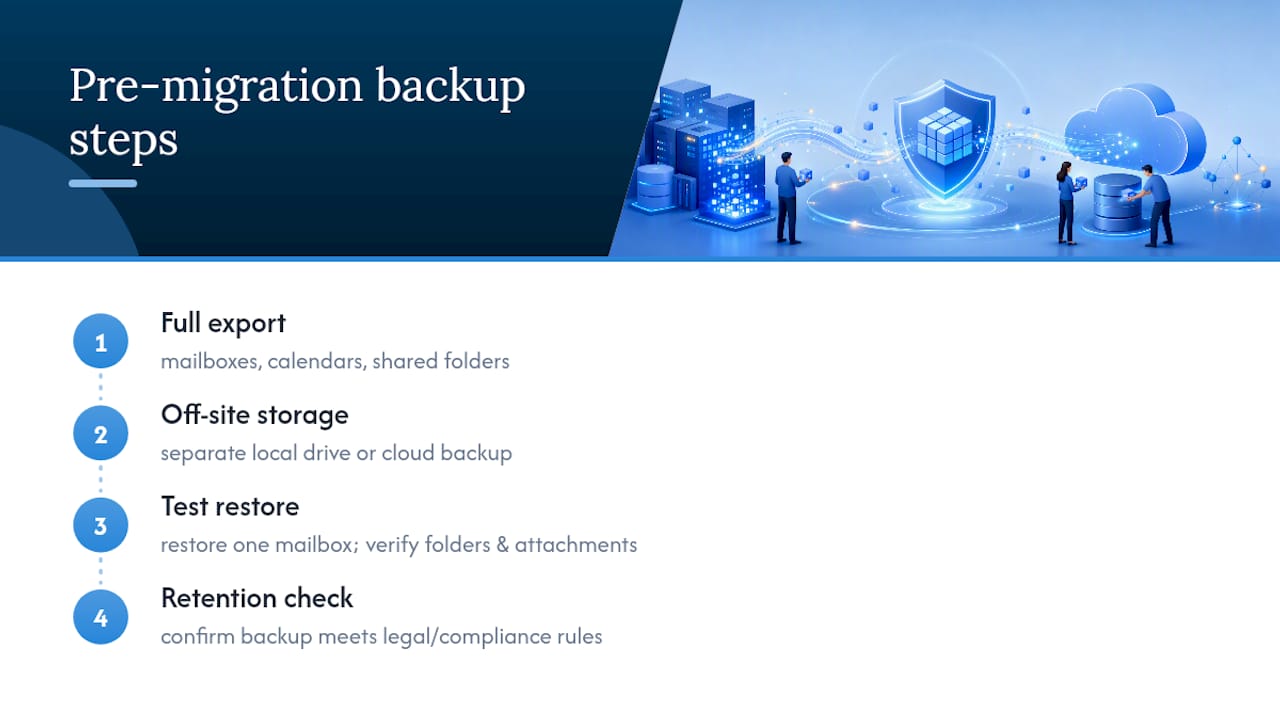
Never begin a migration without a full backup of every mailbox, calendar and shared folder you’re about to touch. This isn’t a formality. Sync tools can fail partway through, and if the only copy of three years of client correspondence exists on a server you’re about to decommission, a failed sync becomes a genuine business emergency rather than an inconvenience.
Export a complete backup using your current platform’s native export tools or a dedicated backup service, and store it somewhere entirely separate from both the source and destination systems. A local drive or a dedicated cloud backup, not a folder on the same server you’re migrating away from.
Confirm the backup actually restores before you rely on it. An untested backup is a guess dressed up as a safety net. Spin up a test restore of at least one mailbox and check the folder structure, attachments and metadata came through intact.
Retention matters here too. If your organisation has legal or compliance obligations around email retention, confirm the backup satisfies those requirements independently of whatever retention settings exist on the new platform. Migrations sometimes reset retention policies inadvertently, and a solid pre-migration backup is the fallback that protects you if that happens. Cloud 9’s backup, security and recovery services page covers how to structure this for a business migrating multiple mailboxes at once.
Consider coexistence strategies during migration
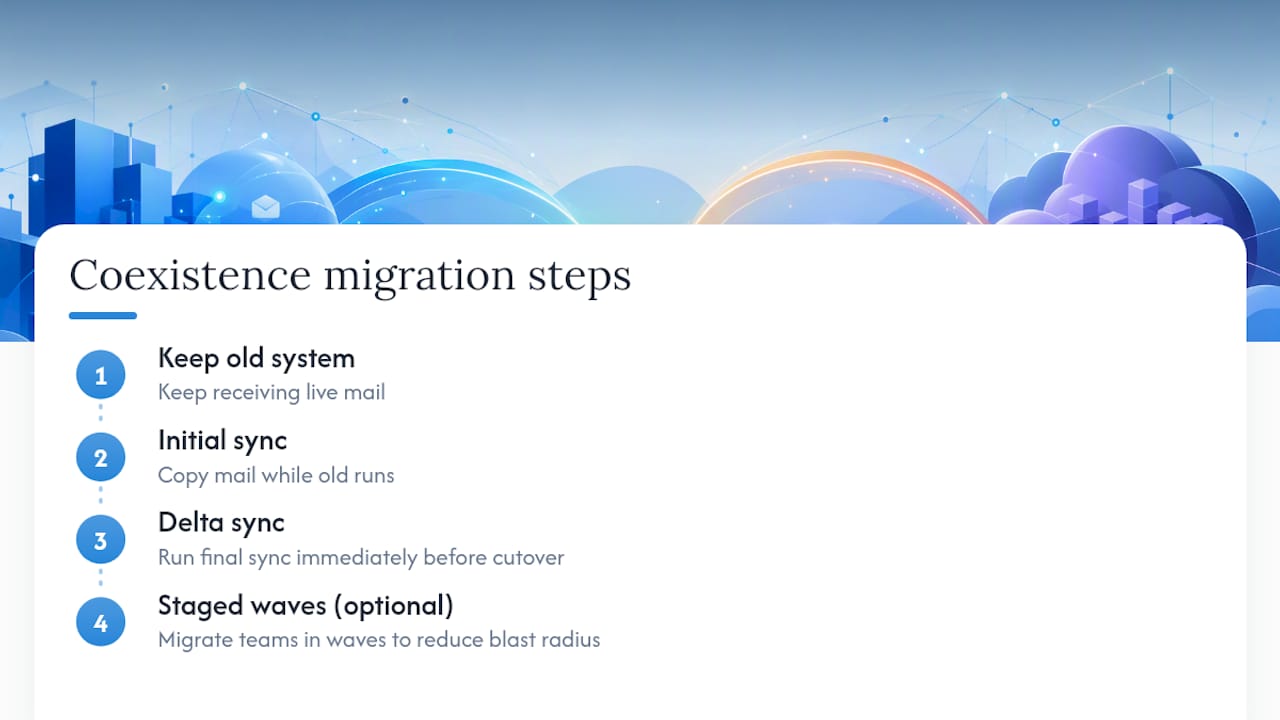
Running both email environments simultaneously, rather than switching everything over in one motion, is what separates a smooth migration from a chaotic one. Coexistence means the old and new systems both function during the transition window, with mail flowing correctly regardless of which server a given sender’s DNS cache still points at.
The simplest coexistence approach: keep the old system fully operational, complete your initial sync while it’s still receiving live mail, then run a delta sync immediately before cutover to catch anything sent during the copy. This way, nothing sent during the migration window gets lost, whichever server it happens to hit.
For organisations with more complex needs, larger user counts, multiple domains, or dependencies on shared calendars and free/busy lookups across two platforms, a longer coexistence period lets specific teams migrate in waves rather than all at once. This reduces the blast radius if something goes wrong; a problem affecting one wave of twenty users is far easier to fix than one affecting the entire company simultaneously.
The trade-off is complexity. Running two systems in parallel means monitoring both, and free/busy calendar lookups between platforms sometimes need a specific connector or workaround depending on your source and destination providers. For most small to medium businesses, a short coexistence window of a few days to a week, rather than a multi-month staged rollout, hits the right balance between safety and simplicity.
Handle mailbox permissions and delegation settings
Shared mailbox access and delegate permissions are among the easiest things to lose in a migration, and among the most disruptive when they go missing. If your finance team shares an “accounts@” inbox, or an executive assistant has send-on-behalf access to a director’s calendar, that permission structure needs to be documented and rebuilt deliberately. It will not simply carry across.
Start by auditing every delegation relationship in the current system: who has full access to which shared mailboxes, who has send-as or send-on-behalf rights, and which calendars have delegate access configured. This list is usually longer than admins expect, particularly in businesses that have grown organically over several years without anyone auditing permissions since.
Recreate these permissions in the destination platform before you communicate the cutover to end users, not after. A finance director who loses access to a shared invoicing inbox on migration morning will notice within minutes, and that’s not the kind of feedback you want during a live cutover window.
Test delegation access as part of your verification gate, the same way you test mail flow and login credentials. Have the actual delegate log in and confirm they can see and send from the shared mailbox, rather than assuming the permission mapping worked because the migration tool reported success.
Update email client and mobile device configurations
Server-side migration success means nothing if fifty staff can’t get their laptops and phones to talk to the new system. Client and device reconfiguration is often the part of an email provider migration that generates the most support tickets, simply because it touches every single user rather than a central system.
For desktop clients like Outlook or Apple Mail, most modern setups use autodiscover, which should reconfigure automatically once DNS propagates, provided the new host publishes the correct autodiscover records. Older or manually configured profiles won’t update themselves, though, so budget time to walk affected users through removing and re-adding their account.
Mobile devices are usually the bigger headache. Provide clear, simple instructions for re-adding accounts on iOS and Android before cutover day, ideally with screenshots specific to your new platform, and set a support window where someone is reachable to help staff who get stuck. This is exactly the kind of detail that separates a calm migration from a chaotic one: users don’t remember that a “quick DNS change” happened, they remember that their phone stopped receiving email and nobody could tell them why.
Build device reconfiguration into your communication plan, not as an afterthought after cutover, but as a scheduled task with a deadline, so nobody is still running dual mailboxes on their phone three weeks later.
Perform post-migration troubleshooting and monitoring
The week after cutover is when quiet problems surface, the ones that didn’t show up in your initial verification gate but appear once real usage resumes at full volume. Monitoring shouldn’t stop the moment MX propagates; it should intensify for at least the first week.
Watch mail flow logs daily for the first few days, checking specifically for bounced messages, delayed delivery, or authentication failures that indicate SPF or DKIM alignment issues. A DMARC report in monitoring mode will surface these authentication problems clearly, showing you exactly which sending sources are passing and which are failing, without blocking any legitimate mail while you fix them.
Keep a simple ticket log of every issue reported during the first two weeks, even small ones. Patterns matter here: if five separate users report the same calendar sync glitch, that’s a configuration issue worth fixing centrally rather than five individual support tickets. Isolated one-off issues, by contrast, are usually device-specific and don’t need a system-wide response.
Set a formal review point, typically two to four weeks after cutover, where you confirm item counts still match, no user has reported missing mail, and authentication reports show clean SPF, DKIM and DMARC alignment. Only after that review should you consider decommissioning the old host entirely.
The most overlooked step in a smooth migration can be avoided by following Site Migration SEO: A Local Checklist for Arizona Businesses, which underscores the importance of project governance and detailed planning.
Most migration guides obsess over the technical sequence, and rightly so, because getting MX and DNS wrong is what causes visible failures. But the research on why migrations actually go badly points somewhere quieter: it’s project governance, not technical sequencing, that separates a clean cutover from a chaotic one.
The conventional advice treats email domain migration as a DNS problem with a checklist bolted on. It’s really a change management problem with DNS as one component. The businesses that struggle aren’t the ones who get SPF records wrong, most of those errors get caught and fixed within hours. They’re the ones who didn’t tell the finance team about the shared mailbox change, or didn’t budget time to rebuild client-side filters that nobody documented in the first place.
If you take one thing from this, prioritise the verification gates over the sync speed. A migration tool that copies data twice as fast doesn’t help you if nobody checks item-count parity before decommissioning the old host. Build the checklist first, then pick the tooling to fit it, not the other way round.
— Rob
Ready to plan your email domain migration properly?
Handling this in-house with a stretched IT team usually means the DNS and authentication steps get rushed, exactly the stage most likely to cause silent deliverability problems weeks later. Cloud 9 runs migrations as governed projects: a documented runbook, staged syncs, DNS and authentication handled in the correct order, and two to four weeks of post-migration monitoring built into the engagement rather than treated as an afterthought.
A typical Cloud 9 migration engagement starts with an audit of your current mailboxes, integrations and permission structures, followed by a written runbook covering timelines, cutover windows and rollback steps. Execution includes the delta sync, MX cutover and authentication configuration; the post-migration phase covers monitoring, client reconfiguration support and a final sign-off once item counts and mail flow are confirmed clean.
If your organisation is planning a move to Microsoft 365 or needs ongoing management once the migration is complete, Cloud 9’s Microsoft 365 support service covers both the transition and the tenant administration afterwards. Get in touch through Cloud 9’s cloud migration support page to request an initial audit and a fixed-scope quote for your migration.
Sources
- Ways to migrate multiple email accounts to Microsoft 365 or Office 365
- The complete email migration guide for busy professionals — Superhuman
FAQ
How do you migrate an email domain without downtime?
Create destination mailboxes and run a full sync before touching DNS, lower TTL 24 to 72 hours ahead of cutover, then flip MX and run a final delta sync while keeping the old host live during propagation.
Will I lose my email when I transfer my domain?
You will not lose email if you avoid changing DNS prematurely and keep both old and new mail systems running in parallel during propagation, according to DNSimple’s migration guidance.
Can I transfer all my emails to a new email provider?
Yes. An initial IMAP or server-to-server sync copies existing mail, folders and attachments, followed by a delta sync just before cutover to capture anything sent during the transfer window.
What is the best tool for email domain migration?
The right tool depends on scale: IMAP sync suits smaller businesses, export/import formats like PST or MBOX work for one-off moves, and dedicated server-to-server migration tools suit larger environments; Cloud 9 advises on tool selection as part of its managed migration support.
How long does an email domain migration take?
Most projects run four to ten weeks end to end, covering 2 to 4 weeks of discovery, 1 to 2 weeks of setup, a single cutover week, and 1 to 4 weeks of post-migration monitoring.