Use HubSpot’s native Data Sync app, listed as “Xero by HubSpot,” for the overwhelming majority of small and medium businesses. Install it and sync in this exact order: contacts first, then products and items, then invoices. Skip that sequence and you’ll see invoice line items rejected because they reference product codes that don’t exist yet in HubSpot. Once running, changes flow from HubSpot to Xero within minutes; Xero to HubSpot takes up to half an hour.
TL;DR:
- The integration requires initial setup of permissions, data hygiene, and correct order of syncing contacts, products, then invoices to prevent rejection of line items.
- Changes made in HubSpot appear in Xero within minutes, but Xero updates in HubSpot take up to 30 minutes due to polling intervals.
- Custom mappings like PO numbers need a Data Hub Starter or higher subscription, and only open or approved invoices sync, excluding drafts.
- Proper testing involves creating small, controlled records in both systems to identify errors, especially reference mismatches and permission issues.
- Maintaining reliability requires regular data cleanup, checking tax rates and accounts, and assigning a dedicated person to monitor error logs weekly.
Table of Contents
- What is the Xero HubSpot integration and how does it work?
- What do you need before connecting Xero to HubSpot?
- How do you connect Xero to HubSpot step by step?
- How do you configure contact, product and invoice sync settings?
- How often does data sync between Xero and HubSpot?
- How do you test and troubleshoot the Xero HubSpot sync?
- What best practices keep the integration reliable long-term?
- How do you handle sync errors when they happen?
- What Cloud 9 sees in businesses that get this right
- Get your Xero and HubSpot sync built and monitored properly
- Where to check the official documentation
- Sources
- FAQ
What is the Xero HubSpot integration and how does it work?
The Xero HubSpot integration connects your accounting platform to your CRM so contact records, product catalogues, invoices, payments, and tax rates stay consistent across both systems without manual re-entry. HubSpot’s official connector, built and maintained by HubSpot itself rather than a third party, is called Data Sync (the listing name is “Xero by HubSpot”). It sits inside HubSpot’s App Marketplace and also appears on the Xero App Store under certified partner apps.
This is a genuine two-way sync for most record types, not a one-off import. The Xero App Store listing confirms it supports bi-directional syncing of contacts, products, invoices and payments, complete with default field mappings, historical backfilling, and automatic import of your Xero tax rates. That last point matters more than it sounds: it means you don’t have to manually recreate your VAT codes inside HubSpot before you start.
Where this differs from a generic “Xero CRM integration” built through a middleware tool is control. HubSpot’s version handles the day-to-day plumbing natively; you only need something like Zapier or Make when you want an action to fire the instant a specific event happens, rather than waiting for the next sync cycle.
What do you need before connecting Xero to HubSpot?
Get these four things sorted before you touch the install button. Skipping this stage is the single biggest predictor of a messy first sync.
- Permissions: you need HubSpot Super Admin access or explicit App Marketplace permission, plus login credentials for the correct Xero organisation (easy to get wrong if your business runs multiple Xero entities).
- Subscription tier: the default field mappings work on any HubSpot plan, but if you want custom mappings, such as a PO number field, you’ll need Data Hub Starter or higher.
- HubSpot data hygiene: merge duplicate contacts, archive dead test records, and standardise how customer and product names are written. Inconsistent naming is what causes silent mismatches later.
- Xero housekeeping: check your tax rates and Chart of Accounts are current before the first import pulls them in automatically.
Pro Tip: Run a contact deduplication pass in HubSpot a full day before you connect anything. Matching happens on email address, so two contact records with slightly different emails for the same person will create two separate customers in Xero.
Practitioner guides on connecting these two platforms consistently flag dirty data as the leading cause of sync errors, well ahead of anything to do with the integration’s configuration itself.
How do you connect Xero to HubSpot step by step?
Installing the app itself is straightforward. The mistakes usually happen in the authorisation step, not the search-and-install part.
- In HubSpot, go to the App Marketplace and search for “Xero by HubSpot.” Click install.
- When prompted, log into Xero and select the correct organisation, this is the step where multi-entity businesses most often authorise the wrong company.
- Review and accept the permission scopes HubSpot requests. These grant read/write access to contacts, invoices, products, and payments.
- Let the app complete its immediate import, primarily your Xero tax rates, before touching any sync toggles.
- Decide whether you want a historical backfill of existing records or a fresh start from the connection date forward.
If the install fails or throws a permissions error, it’s almost always one of two things: you weren’t logged into HubSpot with Super Admin rights, or you selected the wrong Xero organisation during authorisation. Log out of Xero fully and log back in with the right credentials if you’re unsure which one is active.
How do you configure contact, product and invoice sync settings?
This is where setup order stops being a suggestion and becomes a hard requirement. Get it wrong and you’ll spend an afternoon untangling rejected invoice line items.
Contact sync first. HubSpot matches contacts to Xero customers based on email address, so decide your sync direction (two-way is standard) and confirm which fields map where. If a contact has no email address or has two records with different addresses in each system, the match fails silently until you go looking for it.
Product and item sync second. Treat Xero as the source of truth for your catalogue rather than HubSpot. Map each Xero item code to the corresponding HubSpot SKU field precisely, since this is the field invoices will reference. Get the product sync running cleanly and confirmed before you go anywhere near invoices.
Invoice sync last, and only after the above two are stable. Enable invoice syncing and choose which statuses you want included. Draft invoices are excluded by design, according to HubSpot’s own documentation, so only open or approved invoices will move across. Payment syncing typically follows invoice syncing rather than running in parallel.

Custom fields need a plan upgrade. Something as simple as adding a PO number to synced invoices isn’t part of the default mapping. You’ll need Data Hub Starter or above to build that custom mapping.
Pro Tip: Sync five test invoices covering different statuses (draft, approved, part-paid) before switching on the connection for your whole customer base. It’s far easier to spot a mapping error in five records than in five hundred.
How often does data sync between Xero and HubSpot?
The polling cadence catches a lot of admins out because it isn’t symmetrical.
Changes made in HubSpot appear in Xero within minutes. Changes made in Xero take up to roughly 30 minutes to appear back in HubSpot, since HubSpot polls Xero on that interval rather than receiving instant pushes.
What that means day to day:
- Contacts, products, and invoices sync bi-directionally, but expect the Xero-to-HubSpot leg to lag by up to half an hour.
- Payments generally flow one way, from Xero into HubSpot, since payment reconciliation happens on the accounting side.
- Draft invoices never sync, and tax rates import automatically on connection rather than needing manual setup.
- Use the “Sync now” trigger for a manual refresh when you need something to land immediately; for genuinely event-driven automation (fire an action the second a payment clears), a tool like Zapier or Make sits alongside the native sync better than fighting the polling interval.
How do you test and troubleshoot the Xero HubSpot sync?
Run this sequence before you trust the connection with real customer data:
- Create one test contact in HubSpot with a real, unique email address and confirm it appears in Xero within a few minutes.
- Create a test product in Xero, wait for the sync, and confirm the SKU appears correctly mapped in HubSpot.
- Raise an approved (not draft) test invoice referencing that contact and product, and confirm it appears in Xero without errors.
If any step fails, check the usual suspects first: an email mismatch between the two contact records, a missing or mistyped SKU, an invoice still sitting in draft status, insufficient permissions, or authorisation pointed at the wrong Xero organisation. HubSpot’s sync activity log shows failing records individually, filter by error type rather than scrolling the whole history.
Pro Tip: If errors cluster around one specific field, pause the sync entirely rather than letting it keep retrying. Fix the underlying data, then re-run the initial backfill instead of leaving a partially-synced dataset live.
What best practices keep the integration reliable long-term?
First-time success is one thing; keeping the sync clean six months later is another. A handful of habits separate businesses that never think about this integration again from ones firefighting it monthly.
- Deduplicate contacts and standardise product naming conventions before go-live, not after you’ve noticed problems.
- Verify tax rates and Chart of Accounts inside Xero periodically, not just at initial setup, especially after any accountant-led restructuring.
- Assign one named person as sync owner, with a standing weekly check of the error log, rather than leaving it to whoever notices something’s wrong.
- Treat Xero, not HubSpot, as the source of truth for currency values and final reconciliation figures.
- Reserve third-party automation tools for genuinely event-driven triggers the polling cadence can’t support, not as a general-purpose fix for slow syncing.
Pro Tip: Set a recurring calendar reminder for month-end, the day before your bookkeeper needs clean numbers, to skim the sync log for anything stuck in a failed state.
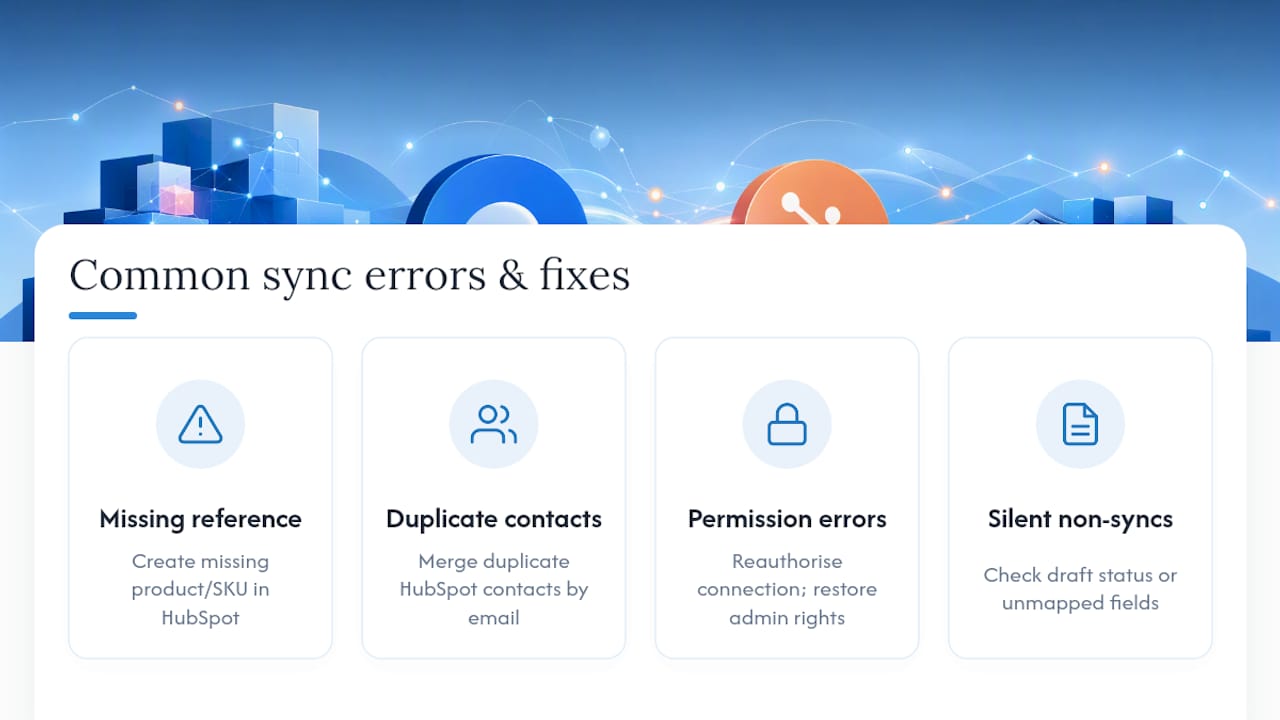
How do you handle sync errors when they happen?
Most sync failures fall into a small number of predictable categories, and HubSpot’s activity log tells you which one you’re dealing with if you know where to look.
Rejected records almost always trace back to a missing reference. An invoice line item pointing to a SKU that doesn’t exist in HubSpot yet is the classic case, which is exactly why product sync has to run and settle before invoice sync goes live.
Duplicate or conflicting contact matches happen when the same customer exists under two email addresses. Since matching runs on email, fix this by merging the HubSpot records first, then letting the next sync cycle reconcile Xero.
Permission errors typically mean the connected user’s access has changed since setup, someone revoked Super Admin rights, or a password reset broke the stored authorisation token. Reauthorising the connection from scratch usually resolves this faster than trying to diagnose the exact cause.
Silent non-syncs are the trickiest: nothing errors, but a record just never appears. Check first whether it’s a draft invoice (excluded by design) or a custom field with no mapping in place, since both look identical to “broken” from the user’s side but are actually working as intended.
The fix pattern is consistent across all of these: isolate the failing record type in the log, correct the root data issue, then let the sync catch up naturally rather than force-triggering repeated manual syncs on top of unresolved errors.
What Cloud 9 sees in businesses that get this right
Good integrations aren’t really about moving data. They’re about getting sales and finance looking at the same numbers without either team double-checking the other’s work. The businesses that get real value from this setup report fewer month-end scrambles and invoices going out faster, because nobody’s manually copying figures between two screens anymore. Managed setup is often recommended over a DIY approach when a business runs multiple Xero organisations, needs custom field mapping beyond the defaults, or lacks the internal capacity to manage the sync log regularly.
— Rob
Get your Xero and HubSpot sync built and monitored properly
If reading through the setup order, polling delays, and error patterns above has you thinking this is more plumbing than your team has time for, a specialist service provider can help handle CRM and marketing automation setup end to end, including finance-to-CRM integration, so you’re not the one managing sync logs late at month-end.

A typical engagement with a managed service provider starts with a short audit of existing HubSpot and Xero setups, moves into a pilot sync covering contacts and products, then rolls out invoicing once that pilot proves stable. From there, many clients move onto an ongoing retainer where the provider monitors the sync log, catches failing records early, and keeps mappings current as product catalogues or team structures change. If you’re weighing this against a Shopify-to-Xero setup instead, or want CRM and marketing automation built around the sync rather than bolted onto it, get in touch and we’ll scope what a managed rollout looks like for your business.
Where to check the official documentation
For the definitive, regularly updated technical detail, go straight to the source rather than relying on third-party summaries. HubSpot’s own Connect HubSpot and Xero (Data Sync) knowledge base article covers every field mapping in detail. HubSpot’s Xero partnership page outlines regional capabilities and partner discount eligibility. The Xero App Store listing confirms current feature support and user reviews. For invoicing workflow context beyond this integration, Kukoo Creative’s guide to online invoicing tools is a useful regional reference.
Sources
- Connect HubSpot and Xero (Data Sync)
- Xero + HubSpot | HubSpot Strategic Partners
- Connect Xero and HubSpot — Xero App Store (UK)
FAQ
Which CRM is compatible with Xero?
HubSpot has the most mature native connector, through the official Data Sync app covered throughout this guide, but Xero’s App Store lists several other certified CRM integrations built for more specialised workflows.
What’s Xero’s biggest competitor?
Xero competes primarily with QuickBooks and Sage in the UK small business accounting market. None of that affects the HubSpot integration itself, which is built specifically for Xero.
What are the disadvantages of HubSpot?
HubSpot’s custom field mappings, such as adding a PO number to synced invoices, require a Data Hub Starter subscription or higher, so the free and lower tiers limit how far you can customise the Xero sync. Costs also scale quickly once you move beyond the entry-level plans.
Who is HubSpot’s biggest competitor?
Salesforce is generally considered HubSpot’s largest direct competitor in the CRM space, alongside smaller platforms serving specific niches. For businesses already using Xero, HubSpot’s dedicated native integration is a meaningful practical advantage over CRMs without an equivalent official connector.
Do draft invoices sync between Xero and HubSpot?
No. Draft invoices are excluded from the sync by design; an invoice needs to be open or approved in Xero before it will appear in HubSpot.
How long does it take for changes to sync?
Changes made in HubSpot reach Xero within minutes. Changes made in Xero take up to around 30 minutes to appear back in HubSpot, since the connection polls Xero on that interval rather than pushing updates instantly.