Conditional access policies are if-then statements that evaluate every sign-in against a set of signals, then grant, block, or restrict access accordingly. This is Microsoft Entra’s core Zero Trust enforcement mechanism, and if you administer identity for any organisation running Microsoft 365 or Azure AD, it’s the single most important control surface you have.
The first thing to do is deploy a small baseline of policies in report-only mode, before anything else. Focus that baseline on two things: enforcing MFA and blocking legacy authentication protocols. Report-only mode lets you see exactly who a policy would affect without actually blocking anyone, which is how you avoid the classic rookie mistake of locking out your entire finance team on a Friday afternoon.
- Conditional access evaluates signals (user, device, location, app, risk) then enforces a decision
- Entra ID P1 covers the core policy engine; P2 is required for risk-based conditions
- Start with report-only, not enforced, for every new policy
Pro Tip: Before you write a single policy, confirm your break-glass accounts exist and are excluded from every rule. You’ll thank yourself later.
Key Takeaways
Conditional access works because it evaluates every sign-in against stacked, if-then rules and enforces the strictest matching outcome, so testing in report-only mode before enforcement is not optional.
| Point | Details |
|---|---|
| Start in report-only | Run new policies unenforced for at least one to two weeks and review sign-in logs daily. |
| Block legacy authentication early | Legacy protocols can’t perform MFA, making this one of the highest-value baseline policies. |
| Protect break-glass accounts | Keep at least two cloud-only emergency accounts excluded from every policy, tested periodically. |
| Watch the 240-policy limit | Group apps and users logically rather than writing one policy per application. |
| Cloud 9 supports safe rollout | Cloud 9 helps clients configure Intune enrolment and review policy sets against tenant limits. |
Table of Contents
- What Are Conditional Access Policies and How Do They Work?
- Which Signals and Conditions Should You Build Around?
- How Do You Target Policies and What Controls Are Available?
- What Are Good Conditional Access Policy Examples to Start With?
- How Should You Test and Deploy Policies Safely?
- What Are the Operational Limits and Common Pitfalls?
- What Does a Practical Rollout Checklist Look Like?
- Where to Read More on Conditional Access
- What I’d Prioritise Differently From Most Guidance
- Get Help Rolling Out Conditional Access Without the Guesswork
- Sources
- FAQ
What Are Conditional Access Policies and How Do They Work?
Every sign-in to a protected resource passes through two distinct phases. First, Microsoft Entra collects signals about the user, the device, the location, the application being accessed, and (with the right licence) the calculated risk of the sign-in itself. Second, the engine checks that collected signal set against every enabled policy in the tenant and decides what to enforce.
Here’s the part that trips up newer administrators: it isn’t first-match-wins.
- All enabled policies matching the sign-in context are evaluated, not just one
- Grant controls from matching policies stack, so a user might need MFA from one policy and a compliant device from another simultaneously
- If any single policy says block, the block wins outright, regardless of what any other policy grants
This stacking behaviour is why two perfectly sensible policies can combine into something nobody intended. A policy requiring MFA for all cloud apps and a separate policy requiring a compliant device for finance apps will both apply to a finance user, and both requirements must be satisfied before access is granted. Test policy interactions as a set, not one at a time in isolation.
Which Signals and Conditions Should You Build Around?
Conditions are the “if” half of your policy. Get familiar with each type before you start building, because the caveats matter as much as the capabilities.
- Device platform and state: you can target Windows, iOS, Android, and macOS separately, and check for compliance or hybrid join, but platform support for advanced checks varies. Safari on iOS, for instance, can’t satisfy certain approved client app requirements that a managed browser handles without issue.
- Named locations: define trusted IP ranges or countries, but remember that VPN egress points and corporate proxies can make a user’s traffic appear to originate somewhere unexpected. Geo-based blocking is a blunt instrument if your workforce travels.
- Client apps and legacy authentication: legacy protocols like POP, IMAP, and older Exchange ActiveSync clients can’t perform MFA at all, which makes blocking legacy authentication one of the highest-value single policies you can deploy.
- Sign-in and user risk: these signals flag anomalous behaviour, such as impossible travel or leaked credentials, but risk-based conditions only work with an Entra ID P2 licence.
Pro Tip: If your organisation still has legacy protocol traffic in the sign-in logs, don’t switch the block policy straight to enforced. Report-only it first and find out which service account or forgotten mail client is generating that traffic.
How Do You Target Policies and What Controls Are Available?
Assignments define who a policy applies to, and controls define what happens once it matches. Get both right and enforcement becomes predictable rather than a source of helpdesk tickets.
Always assign policies through security groups rather than individual user accounts. Group-based assignment means access changes when someone joins or leaves a team, without you having to remember to edit ten different policies. It also gives you an auditable record of who was covered by which rule at any point in time, which per-user exclusions simply don’t offer.
Beyond users and groups, you can target specific applications, specific user actions (like registering security information), and even authentication contexts inside an app for finer-grained control than “all or nothing” access.
Grant controls decide what the user must do to get in:
- Require multi-factor authentication
- Require a compliant or hybrid Azure AD-joined device
- Require an approved client app or app protection policy
- Require a password change
- Block access outright
When a sign-in matches multiple policies requiring different grant controls, the user sees each requirement in sequence, MFA first, then device compliance, and so on. Session controls layer on top of this, restricting what a user can do once they’re in (like blocking downloads in a browser session) rather than gating entry itself.
What Are Good Conditional Access Policy Examples to Start With?
You don’t need dozens of bespoke rules. Practitioner guidance consistently points to a compact baseline, typically 10 to 16 core policies, covering the scenarios that matter most rather than a sprawling reactive rule set that nobody can audit.
- Require MFA for all users on all cloud apps as your foundational policy
- Block legacy authentication entirely, since older protocols can’t support modern MFA prompts at all
- Protect administrator accounts with phishing-resistant MFA (FIDO2 keys or certificate-based authentication), not just a text-message code
- Require compliant devices, or app protection for unmanaged ones, so a user’s personal phone accessing email doesn’t need full device enrolment
- Set sign-in frequency limits for sensitive apps, forcing more frequent re-authentication on finance or HR systems specifically
If you hold an Entra ID P2 licence, add risk-based policies: force a password reset or step-up MFA on high user risk, and require MFA on high sign-in risk. Combining both signals closes more compromise scenarios than relying on either alone, and it’s worth migrating any legacy risk policies into conditional access before Microsoft deprecates the older risk-policy mechanisms entirely.
How Should You Test and Deploy Policies Safely?
Rushing straight to enforced mode is how conditional access earns its reputation for locking people out. A methodical rollout avoids that entirely.
- Build the policy in report-only mode and leave it there for a minimum of one to two weeks, reviewing sign-in logs daily for the first few days
- Pilot with a representative group, not just the IT team, and specifically check any service accounts or automated processes that authenticate without a human present
- Exclude Intune enrolment apps and the Company Portal from device compliance requirements, otherwise devices can’t complete enrolment in the first place
- Communicate the change window to affected users before flipping to enforced, and keep a rollback plan ready
Pro Tip: Filter the sign-in log by “would have been blocked” during report-only testing. That single filter surfaces almost every false positive before it becomes a real one.
What Are the Operational Limits and Common Pitfalls?
Every tenant has a hard ceiling of 240 conditional access policies, counting policies in any state, enabled, disabled, or report-only. Build one policy per application and you’ll hit that wall faster than you’d expect. Group applications and user populations logically instead.
The most common causes of accidental lockouts are predictable once you’ve seen them:
- A block policy with an unintended scope (too broad a location or app group)
- Stacked grant controls across multiple policies that combine into an impossible requirement
- Per-user exclusions that get forgotten and never cleaned up, breaking audit trails
Recovery starts before you ever need it. Maintain at least two cloud-only break-glass accounts, excluded from every policy and secured with phishing-resistant authentication, and test them periodically rather than assuming they still work. Export your policy set to JSON and keep it in version control, and use Privileged Identity Management to time-box admin access rather than leaving standing permissions in place.
What Does a Practical Rollout Checklist Look Like?
Strip everything above down to four actions and you’ve got a defensible starting point for any tenant:
- Identify and secure at least two break-glass accounts before touching any policy
- Enable the MFA and block-legacy-auth baseline in report-only mode
- Review sign-in logs daily during the pilot window
- Document every exclusion, and pilot with a real user group before enforcing
Cloud 9 supports this process directly for clients running Microsoft 365 environments, handling Intune enrolment configuration, reviewing policy sets against the 240-policy limit, and running scheduled policy reviews so baselines don’t drift out of date as the organisation grows.
Where to Read More on Conditional Access
For the technical detail this guide summarises, go straight to the source documentation and one practitioner write-up worth bookmarking:
- Conditional Access overview, Microsoft’s core definition of the policy engine
- Plan a Conditional Access deployment, covering rollout sequencing and tenant limits
- Security overview from The Therapy Canvas, a real-world example of testing discipline before enforcing access controls
What I’d Prioritise Differently From Most Guidance
Most conditional access advice treats policy design as the hard part. It isn’t. The hard part is the operational discipline around it, the report-only week nobody wants to wait out, the break-glass account nobody tests until the day it’s needed, the exclusion list that never gets reviewed after the pilot ends.
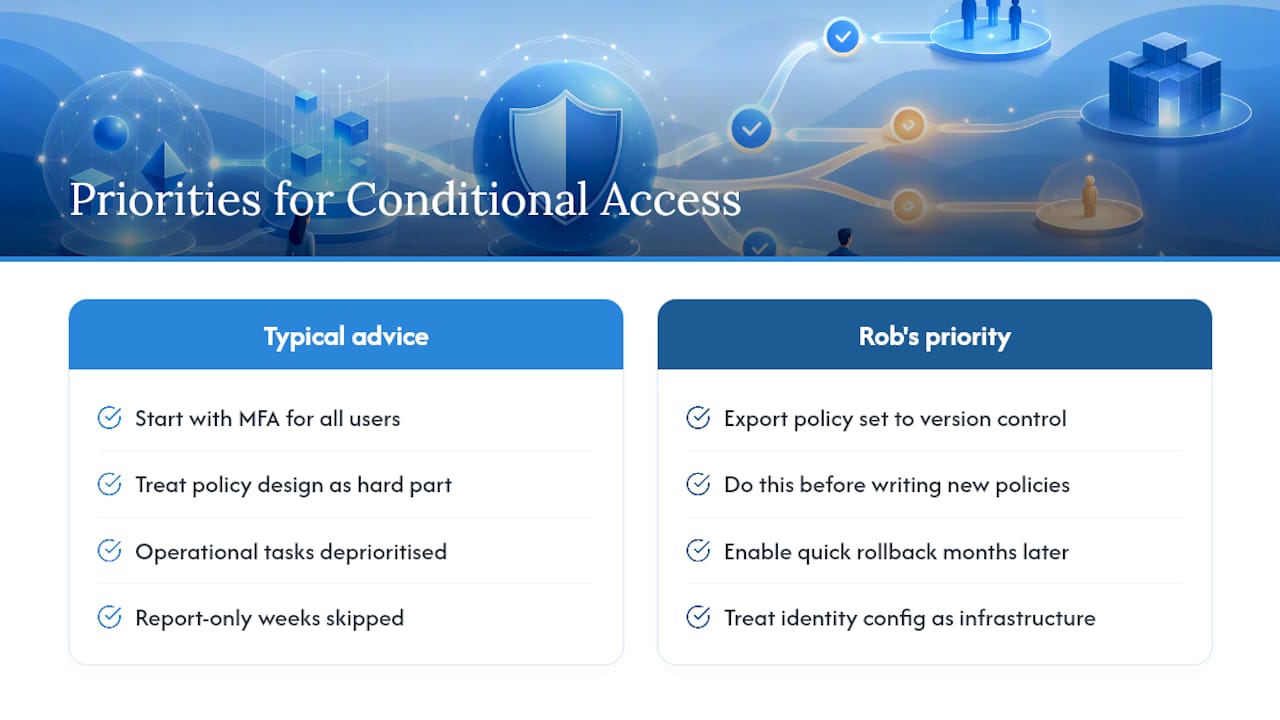
The conventional advice tells you to “start with MFA for all users.” Fine, but that’s the easy 20% of the work.
If I had to pick one priority for a team starting today, it wouldn’t be a specific policy at all. It would be exporting the policy set to version control before writing anything new, so that six months from now, when something breaks, you can see exactly what changed and roll it back in minutes rather than reconstructing the tenant’s history from memory. Treat the tenant’s identity configuration as infrastructure worth the same rigour as your codebase, because that’s precisely what it is.
— Rob
Get Help Rolling Out Conditional Access Without the Guesswork
Getting conditional access right takes ongoing attention, not a one-off setup. Policy sets drift, new apps need onboarding, and break-glass accounts need periodic testing that busy IT teams rarely have time for. Cloud 9 handles this as part of its managed cloud services for established UK businesses, running policy reviews, supporting Intune enrolment, and keeping tenant configuration documented so nothing depends on one person’s memory.

If your team already runs Microsoft 365 and wants a partner who understands both the identity side and the wider digital operation around it, from hosting to CRM to cloud migration, that’s exactly where Cloud 9 fits. Get in touch for a review of your current tenant configuration and a practical plan for closing any gaps before they become lockouts.
Sources
- Conditional Access overview – Microsoft Learn
- Plan a Conditional Access deployment – Microsoft Learn
FAQ
What Are Examples of Conditional Access Policies?
Common examples include requiring MFA for all users, blocking legacy authentication protocols, enforcing phishing-resistant MFA for administrator accounts, and requiring compliant devices or app protection for unmanaged devices accessing corporate data.
Where Do I Find Conditional Access Policies?
Conditional access policies are managed in the Microsoft Entra admin centre, under Protection, then Conditional Access, where you can view, create, and test policies in report-only mode before enforcing them.
What Licence Do I Need for Conditional Access Policies?
Entra ID P1 covers the core conditional access engine, including device, location, and app-based policies. Entra ID P2 is required specifically for risk-based conditions using sign-in risk and user risk signals.
What Are the Best Practices for Conditional Access Policies?
Deploy new policies in report-only mode for at least one to two weeks, target groups rather than individual users, maintain break-glass accounts excluded from all policies, and keep the policy count compact rather than building one rule per application.