Effective Microsoft Teams governance stops sprawl, protects data, and keeps content findable through compliant retention. The first move is not a policy document. It is assembling a small cross-functional group: IT, compliance, and a couple of business leads, and forcing agreement on eight core decisions before you touch a single admin setting.
TL;DR:
- Restrict Teams creation to approved request processes to prevent tenant sprawl, limiting chaos outside the first six months of deployment.
- Enforce short, consistent naming conventions with prefixes and limits to make team search and management practical without truncation or search errors.
- Separate expiration, retention, and archiving policies to manage inactive teams, preserve content for compliance, and avoid accidental data loss.
- Use automated access packages and periodic reviews to manage memberships and guest access, reducing manual effort and lingering external risks.
- Integrate Teams governance with existing IT risk, data classification, and retention frameworks to ensure policies stay aligned and manageable over time.
Table of Contents
- What decisions define Microsoft Teams governance?
- How do you control team creation and naming?
- What are the right expiration, retention and archive settings?
- How should you manage membership and guest access?
- Which Teams policies actually need assigning?
- How do sensitivity labels and retention work together?
- How long should a Teams governance pilot run?
- What does a working governance checklist look like in practice?
- How do you handle governance policy violations?
- How does Teams governance fit wider IT governance?
- How do you get staff to actually follow governance rules?
- Governance as an enabler, not a restriction
- Get Microsoft 365 governance set up properly
- Sources
- FAQ
What decisions define Microsoft Teams governance?
Governance lives or dies on eight choices, and Microsoft’s own planning guidance groups them into the same categories every mature deployment ends up using: creation and naming, lifecycle, membership, policy controls, and security. Get these signed off before rollout, not during it.
- Who can create teams? Open creation is faster but produces sprawl within months; restricting it to a request workflow slows things down but keeps the tenant clean.
- Naming convention. Decide the prefix, department codes, and blocked words before the first team gets created, not after fifty exist.
- Guest access. Allow it tenant-wide, restrict it by team, or ban it. Most SMEs land somewhere in the middle.
- Approved apps. Which third-party and custom apps are permitted, and who reviews new requests.
- Meeting scope. Who can host external meetings, record, or use live events.
- Retention and expiration. How long an inactive team survives before renewal or archive.
- Policy ownership. Who actually owns the settings once they’re live.
- Pilot length. How long before you review and adjust, typically 60 days.
Copy this into a shared document with a simple yes/no column, and get sign-off from each stakeholder in the room, not over email.
How do you control team creation and naming?
Unrestricted team creation feels productive for about six months, then you end up with three teams called “Marketing” and nobody sure which one is live. Restricting creation to a request form or an approved group of requesters slows adoption slightly but keeps the tenant navigable. Most organisations settle on a middle path: anyone can request, but a small group approves.
Naming enforcement runs through Microsoft Entra ID’s group naming policy, which applies prefixes or suffixes automatically and blocks up to 5,000 disallowed words or phrases across every Microsoft 365 group and team. That means you can force “SALES-” onto every sales team name and ban terms like “test” or “temp” tenant-wide.
- Keep prefixes short to avoid names truncating in the Teams sidebar.
- Use spaces or hyphens as delimiters rather than underscores; they scan faster.
- Avoid emojis and special characters, which break search and export tooling.
- Cap the full display name around 30 characters where possible.
Use team templates for recurring structures, project teams, department teams, so channel layout and metadata stay consistent without manual policing.
Pro Tip: Naming conventions that map to how people actually search, not how IT thinks about departments, get adopted faster and reduce duplicate teams within the first quarter.
What are the right expiration, retention and archive settings?
These three controls do different jobs, and conflating them is the most common governance mistake. Expiration policies delete or renew a team automatically after a set period of inactivity. Retention policies preserve content, messages and files, for compliance regardless of what happens to the team itself. Archive puts a team into read-only state without deleting anything.
Deleted teams and groups don’t vanish immediately: they sit in soft-delete for 30 days and can be restored within that window. A retention policy can override deletion entirely, keeping content accessible for eDiscovery even after a team is gone. Some Teams content, chat conversations especially, can’t be moved natively between teams; extracting it requires the Graph API or an eDiscovery case.
Before archiving or decommissioning a team:
- Confirm whether files need exporting to SharePoint or a separate archive location.
- Review guest members and remove any no longer needed.
- Check whether the team is subject to an active eDiscovery hold.
- Archive rather than delete if there’s any doubt about future access needs.
Retention policies for Teams and Microsoft 365 require Microsoft 365 E3 or higher for some features; advanced retention labels need E5 or add-on licensing.
How should you manage membership and guest access?
Manual membership management doesn’t scale past a handful of teams. Entitlement management in Microsoft Entra ID packages resources, teams, groups, apps, into a single request a user can apply for, with an expiry date attached automatically. Access disappears on schedule instead of lingering for years.
- Package related resources into access packages with a defined expiry, tying access to a project timeline rather than leaving it open-ended.
- Set an access review cadence, typically quarterly, and route attestation tasks to team owners rather than IT, since owners know who still needs access.
- Treat guest accounts as persistent risk: they remain in Entra ID after a project ends unless someone actively removes them, and one guest often sits in multiple teams.
- Tie access reviews to HR events, leavers, role changes, project close, so membership cleanup happens automatically rather than during an annual scramble.
Which Teams policies actually need assigning?
Teams policy types fall into a handful of areas, and each one changes what a user can actually do inside the app. Messaging policies control editing, deletion and chat features. Meeting policies govern recording, transcription and external participation. App permission policies decide which third-party and custom apps show up. Setup policies pin apps and define the default app bar. Update policies control which release ring a user sits in.
Assignment rarely works well as a single tenant-wide default. Practical approaches include:
- Group-based assignment, tying policy sets to department or role security groups.
- A pilot group of early adopters who get new policies first, before wider rollout.
- Role-based application, executives and reception desks rarely need the same meeting policy as engineering.
Teams settings and policies reference documents every default value. For repeatable, auditable assignment, PowerShell beats manually clicking through the admin centre, particularly once you’re managing more than a few hundred users.
How do sensitivity labels and retention work together?
Sensitivity labels attached to a team or site control sharing behaviour, whether guests can be invited, whether content can leave the tenant, and how the team is classified. Retention policies work alongside them but solve a different problem: preserving messages and files for a set period regardless of what a user tries to delete.
Both features carry licensing requirements worth checking before you promise them to stakeholders. Retention policies for Teams and Microsoft 365 need Microsoft 365 E3 or above for baseline functionality; access reviews and advanced entitlement management sit behind Entra ID P1 or P2.
A tenant without verified sensitivity labelling on its most sensitive teams is effectively relying on user judgement alone, which is precisely the risk governance exists to remove.
- Spot-check a sample of teams monthly to confirm labels are actually applied, not just available.
- Audit retention policy scope quarterly against the teams it’s meant to cover.
- Remember connected services, Planner, Power BI, Stream, often hold data that outlives the team itself and needs its own off-boarding step.
Pairing this with conditional access policies closes the gap between who’s labelled correctly and who’s actually allowed to reach the content in the first place.
How long should a Teams governance pilot run?
A 60-day pilot with a small group of early adopters gives you enough real usage data to know whether your naming rules and policy scope actually work. Microsoft’s own governance quick start recommends exactly this window for early experimentation.
- Track team health during the pilot: creation rate, duplicate names, retention exceptions raised, and guest access requests.
- Collect structured feedback from pilot users, not just complaints, on whether naming conventions match how they actually describe their work.
- Revise naming rules and policy scope based on that feedback before wider rollout, not after.
- Assign a review cadence once live: monthly audits of new teams and quarterly governance reviews of the policy set as a whole that promote task ownership and accountability.
Unhealthy teams, dormant, duplicated, or misnamed, need a decision point: revitalise with an active owner or decommission through the off-boarding checklist.
Pro Tip: Treat the pilot’s feedback session as mandatory, not optional. Policies drafted in isolation and never tested against real usage get quietly ignored within weeks.
What does a working governance checklist look like in practice?
Cloud 9 runs the same reproducible checklist across SME clients moving from ad hoc Teams use to structured governance: confirm the eight core decisions, apply the Entra naming policy, set expiration and retention together, then assign a named owner to each control.
A simple role matrix keeps ownership from evaporating after go-live:
- Policy owner drafts and updates the rules themselves, messaging, meeting and app permission settings.
- Renewal owner handles expiration renewals and chases teams approaching their review date.
- Audit owner runs the quarterly access reviews and confirms sensitivity labels are actually applied.
- Communications owner publishes naming guidance and answers “why can’t I do X” questions from staff.
Tying renewal tasks to that owner’s inbox, with automated reminders rather than a spreadsheet nobody checks, is what keeps governance alive past month three. Firms exploring Microsoft 365 support usually start here.
How do you handle governance policy violations?
Every governance framework eventually meets a user who ignores the naming convention, invites an unapproved guest, or spins up a shadow team outside the request process. What separates working governance from a policy nobody follows is having a clear, proportionate response ready before the first violation happens.
Start by classifying violations into tiers rather than treating every breach identically. A team created with a non-compliant name is a low-severity, self-correcting issue, rename it and move on. A guest added to a team holding sensitive labelled content is a higher-severity issue that needs immediate review and possibly a compliance escalation. Building this tiering into your governance documentation up front means the audit owner isn’t making judgement calls under pressure.
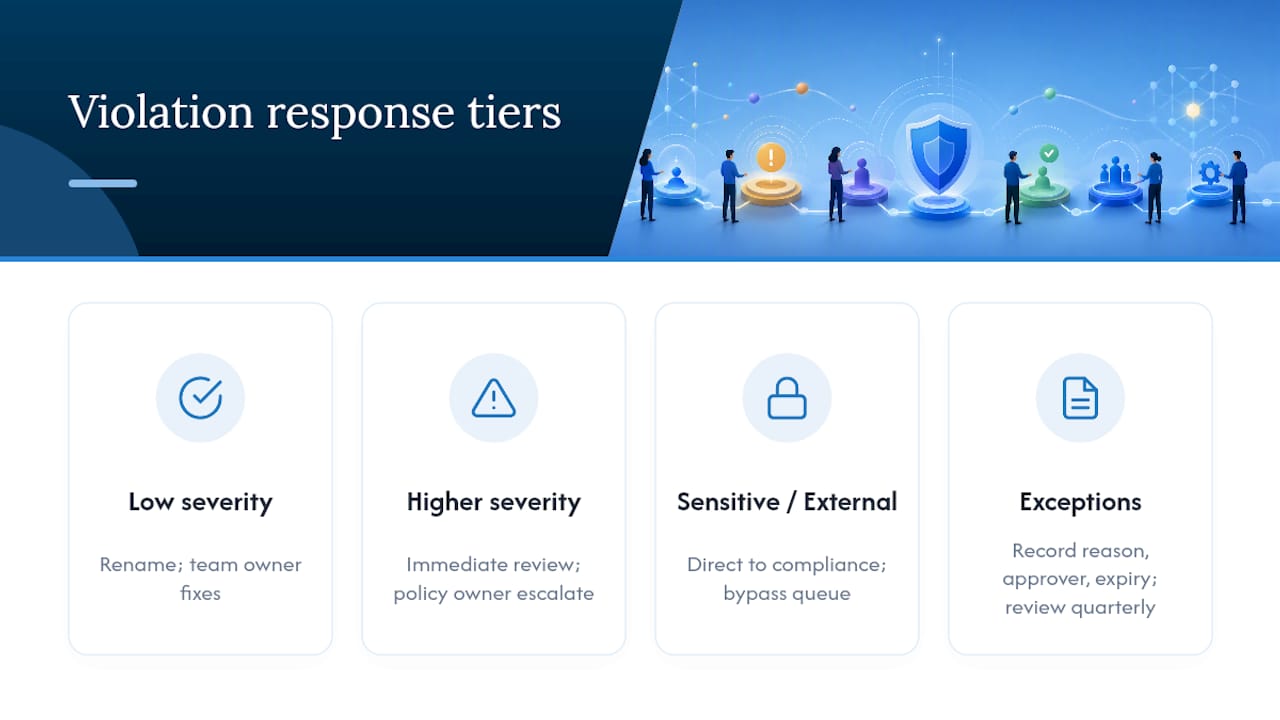
Escalation paths work best when they’re short. A first-line violation goes to the team owner with a fix deadline, typically 48 to 72 hours. Repeated or serious violations escalate to the policy owner, who has authority to restrict the team’s permissions or, in extreme cases, archive it pending review. Anything touching sensitive data or external sharing should route straight to whoever owns compliance, bypassing the queue entirely.
Document every exception granted, not just every violation caught. If a department genuinely needs an exemption from the naming convention or guest access rules, that exception needs a recorded business reason, an expiry date, and a named approver. Undocumented exceptions are how governance frameworks quietly erode: each one seems reasonable in isolation, but eighteen months later nobody remembers why half the tenant doesn’t follow the rules everyone else does.
Review the exception log at the same cadence as your quarterly governance review, and close out any exception whose original justification no longer applies.
How does Teams governance fit wider IT governance?
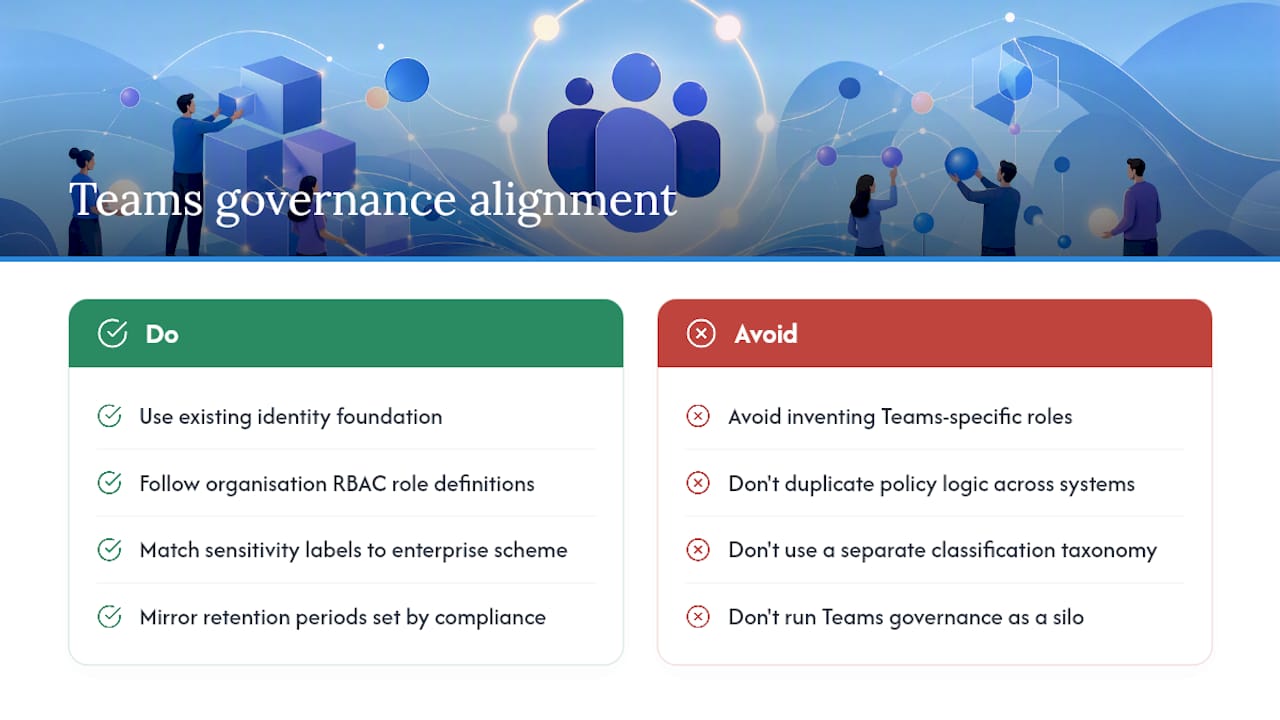
Teams governance rarely works well as an isolated policy set sitting apart from how the organisation already manages identity, data and risk. The strongest implementations treat it as one expression of existing IT governance frameworks, not a parallel structure invented specifically for collaboration tools.
Practically, that means Teams naming and access decisions should draw on the same identity foundation as everything else in the tenant. If your organisation already runs role-based access control for finance systems or HR platforms, Teams entitlement management should follow the same role definitions rather than inventing new ones. Duplicating logic across systems is how policies drift out of sync within a year.
Data classification is the clearest overlap. Sensitivity labels applied inside Teams need to match the classification scheme your organisation already uses for documents, email and SharePoint, not a separate Teams-specific taxonomy that confuses users moving between systems. The same goes for retention: if legal or compliance already sets retention periods for financial or HR records, Teams retention policies for equivalent content categories should mirror those periods rather than introducing a second, potentially conflicting timeline.
Governance ownership should sit inside whatever body already governs IT risk, a change advisory board, an IT steering group, or a compliance committee, rather than becoming a Teams-specific silo run entirely by the collaboration admin. That keeps Teams governance visible to the people already tracking organisational risk, and it means a Teams policy change gets the same scrutiny as a change to email retention or firewall rules. Treating collaboration governance as a subset of the organisation’s broader risk register, rather than a standalone project, is what keeps it funded and reviewed after the initial rollout enthusiasm fades.
How do you get staff to actually follow governance rules?
Policies that live only in an admin console never reach the people who need to follow them. Training and communication decide whether your naming convention and access rules get adopted or quietly worked around within a month of launch.
Start communication before rollout, not after. Early adopters who helped shape naming conventions during the pilot become natural advocates, they already understand the reasoning because they were in the room when trade-offs got discussed. That kind of involvement is worth building into your rollout plan deliberately; the same principle that makes CRM adoption succeed or fail on stakeholder buy-in applies just as directly to Teams governance.
Keep the training itself short and practical rather than comprehensive. A single one-page guide covering how to name a new team, request guest access, and find the right existing team beats a 20-page policy document nobody reads. Put it somewhere findable, pinned in a general channel, linked from the team creation form, not buried in a SharePoint library three clicks deep.
Communicate changes as they happen, not in an annual bulletin. When you tighten guest access rules or change the naming prefix, a short message explaining why, tied to a real problem staff have noticed (duplicate teams, confusing names), lands better than a policy update framed as a restriction. Framing matters: staff who understand governance exists to make their own search and collaboration easier tend to comply without resistance; staff who experience it purely as IT imposing rules tend to find workarounds.
Revisit training content every time the pilot review cycle produces a policy change, so documentation never drifts out of step with what’s actually enforced.
Governance as an enabler, not a restriction
Governance done well is not a compliance exercise bolted onto Teams after the fact. It is the difference between a tenant where people can find the right team in seconds and one where duplication quietly erodes trust in the whole platform. Cloud 9 treats governance as a productivity investment, and managed oversight is what keeps it working past the first quarter.
— Rob
Get Microsoft 365 governance set up properly
Getting the eight core decisions agreed is one thing. Keeping naming policies, retention rules, and access reviews actually enforced six months later, without a dedicated admin chasing renewals in a spreadsheet, is where most in-house attempts quietly fall apart.

Cloud 9 builds and maintains Microsoft Teams governance for established UK businesses as part of ongoing Microsoft 365 support, covering naming policy configuration, retention and lifecycle settings, quarterly access reviews, and monthly audit checks, so governance stays live instead of decaying into another forgotten policy document. If your tenant already has more teams than anyone can account for, get in touch and we’ll walk through what a working governance setup looks like for your organisation.
FAQ
Is Microsoft Teams being discontinued?
No. Teams remains Microsoft’s primary collaboration platform and continues receiving active development; governance planning assumes long-term investment, not sunset.
Does Microsoft have a GRC tool?
Microsoft Purview provides compliance and risk management capabilities, including retention policies, sensitivity labels and audit tools, that support governance, risk and compliance work across Teams and the wider Microsoft 365 estate.
What is team governance?
Team governance is the set of decisions and controls, naming, creation rights, lifecycle, membership, and security, that keep a collaboration platform organised, compliant, and easy to navigate as it scales.
How often should Teams governance policies be reviewed?
A quarterly governance review alongside monthly audits of new teams and access reviews keeps policies aligned with how the organisation is actually using Teams.
What licensing do I need for Teams governance features?
Retention policies typically require Microsoft 365 E3 or above, while advanced entitlement management and access reviews need Entra ID P1 or P2 licensing.