Patch WordPress core, plugins and themes now, enable two-factor authentication on every admin account, confirm your backups actually restore, and enforce HTTPS site-wide. Those four moves close most of the doors attackers try first. Everything else in a proper hardening plan (file permissions, edge firewalls, security headers, monitoring) matters, but it builds on that foundation rather than replacing it.
TL;DR:
- Enabling two-factor authentication on all admin accounts and confirming backup restore capability are critical for preventing credential theft and ensuring data recovery.
- Regular plugin, theme, and core updates, combined with removing unused components, significantly reduce known vulnerabilities that automated attacks target daily.
- Blocking PHP execution in upload directories and securing server permissions prevent attackers from using compromised files or exploits to gain deeper access.
- Enforcing HTTPS site-wide, deploying security headers, and using a cloud-based WAF layer stop malicious requests before they reach the server, lowering overall attack volume.
- Continuous monitoring, testing recovery procedures, and conducting quarterly restore drills are vital to quickly identify breaches and verify that security controls function properly over time.
Table of Contents
- Why WordPress security hardening matters: the threat landscape
- Foundational measures: updates, backups and authentication
- Server and file-system hardening: permissions and configuration
- WordPress settings that reduce your attack surface
- Edge protections: TLS, headers, CDN and WAF
- Monitoring, logging and how to respond to a compromise
- Your prioritised WordPress security checklist
- How managed hosting operationalises WordPress security
- What actually separates secure sites from vulnerable ones
- Cloud 9 managed hosting and website care
- Sources
- FAQ
Why WordPress security hardening matters: the threat landscape
WordPress runs a huge share of the web, which makes it a standing target rather than an occasional one. Automated bots scan the internet around the clock, and most attacks against WordPress sites are opportunistic rather than personal. Nobody is targeting your site specifically; a script is targeting every site that shares a known weakness.
Credential stuffing is the most common entry attempt. Attackers feed lists of leaked usernames and passwords, harvested from unrelated breaches, into wp-login.php and the legacy xmlrpc.php endpoint, hoping some fraction of site owners reused a password. Because both endpoints accept repeated automated requests by default, a single bot can attempt thousands of logins per hour unless something stops it.
Vulnerable plugins and themes are the second major route in. A huge proportion of WordPress compromises trace back to an outdated extension with a known, published vulnerability, often one with a patch already available that simply hasn’t been applied. WPScan’s hardening checklist treats plugin and theme updates as a foundational control precisely because attackers automate the search for unpatched installations at scale.
Then there’s sheer volume. Bot traffic and low-grade DDoS attempts to don’t need to succeed to cause damage. They chew through server resources, inflate hosting bills, and bury real signals in a flood of noise. That’s a strong argument for pushing as much filtering as possible to the network edge, before requests ever reach PHP.
None of these threats sit in isolation, which is why a single plugin or a single strong password is never enough on its own.
- Automated credential stuffing against login and XML-RPC endpoints, run at massive scale with stolen password lists.
- Plugin and theme vulnerabilities, often disclosed publicly before every site has patched.
- Bot and scraper traffic that inflates server load and can mask genuine attack attempts.
- Supply-chain risk from abandoned or poorly maintained third-party code bundled into themes and plugins.
Defence in depth means stacking controls so that a failure at one layer doesn’t hand over the whole site. An edge firewall blocks obvious junk before it reaches your server. Server-level rules stop malicious files from executing even if they get uploaded. Application settings inside WordPress limit what a compromised plugin or stolen password can actually do. Each layer catches what the one before it missed, which is the entire logic behind the official Hardening WordPress handbook treating security as risk reduction rather than a single fix.
Foundational measures: updates, backups and authentication
These are the controls that stop the most attacks for the least effort. If you do nothing else on this page, do this section.
Get your update policy right
Leaving WordPress core, plugins and themes unpatched is still the single biggest self-inflicted risk on the platform. WordPress applies minor core updates and security releases automatically by default, but plugins and themes generally need an explicit auto-update setting or manual review.
A sensible policy looks like this:
- Enable automatic updates for WordPress core minor releases (already the default) and don’t disable them.
- Auto-update plugins and themes from reputable, actively maintained developers, checking release notes weekly rather than blindly trusting every push.
- Stage major version updates (a new PHP version, a significant plugin rewrite, a theme framework change) on a test environment first, since these are the updates most likely to break something.
- Remove anything you’re not using. An inactive plugin or theme still carries its vulnerabilities even when deactivated; delete it rather than leave it dormant.
Back up properly, then prove it works
A backup nobody has restored is a hope, not a plan. The WordPress security checklist recommends the 3-2-1 approach as the baseline: three copies of your data, on two different types of storage, with one copy kept offsite. For WordPress specifically, that means your database and your files (uploads, themes, plugins, and wp-config.php separately secured) all need covering, not just the database.

Immutable backups matter more than most site owners realise. If ransomware or a malicious script reaches your hosting account, a backup that can be overwritten or deleted by the same compromised credentials offers no real protection. Object storage with versioning, or a backup provider that keeps write-once snapshots, closes that gap.
Pro Tip: Put a recurring calendar reminder in place to actually restore a backup to a staging environment every quarter. A restore you haven’t tested isn’t a backup, it’s an assumption, and the worst time to discover it doesn’t work is during a live incident.
Lock down authentication
Weak or reused passwords remain the easiest way into a WordPress admin panel. Three changes fix most of the exposure:
- Enforce long, unique passwords through a password policy plugin or your hosting control panel, rather than trusting users to choose sensible ones unprompted.
- Adopt passkeys or WebAuthn where your hosting or a plugin supports it. Passwordless authentication removes the credential-stuffing problem entirely, since there’s no reusable secret to steal.
- Make two-factor authentication mandatory for every account with publishing or administrator access, not optional. A single unprotected admin account undoes every other control on this list.
Audit who actually has access
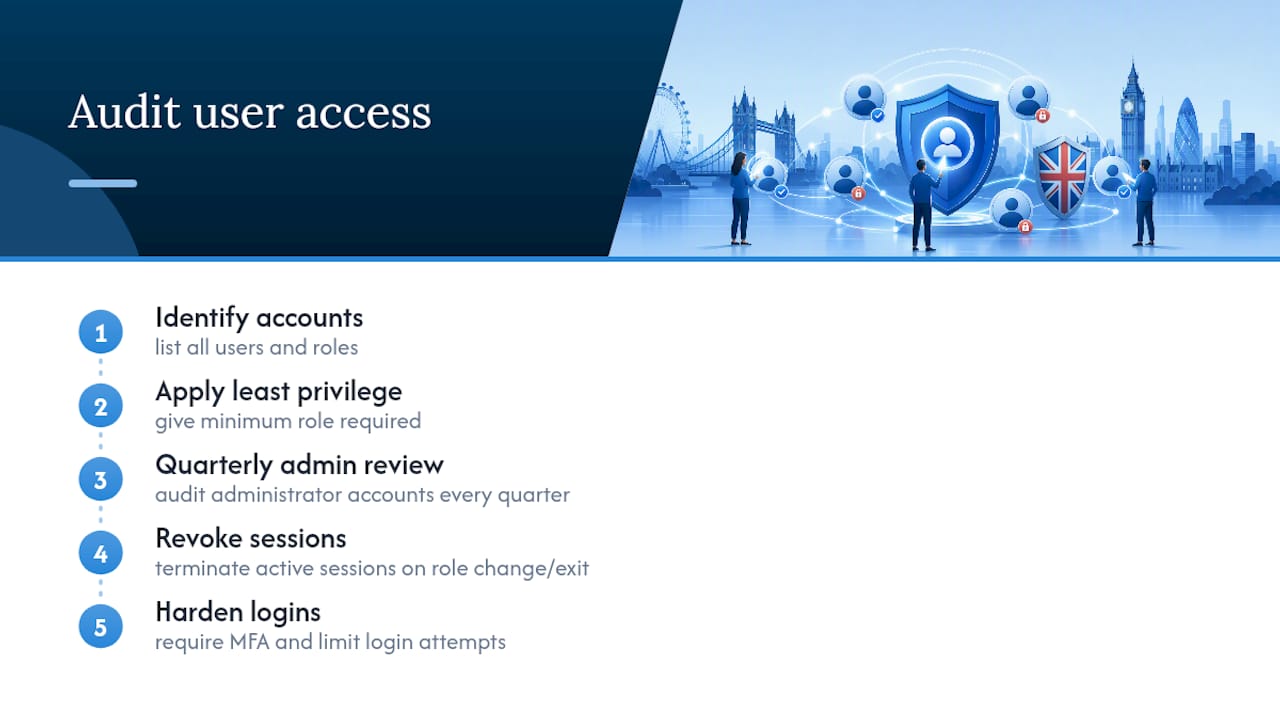
User accounts accumulate over time; a marketing contractor from two years ago often still has an editor login nobody remembers granting. Apply least privilege as a standing rule: give each user the minimum role their job requires, run a quarterly audit of administrator accounts, and revoke active sessions immediately whenever someone’s role changes or they leave. Cloudflare’s WordPress security guidance treats mandatory multifactor authentication and login-attempt limiting as central mitigations for exactly this reason: most breaches start with a credential, not a zero-day exploit.
Server and file-system hardening: permissions and configuration
Application settings only work if the server underneath them is configured sensibly. This is the layer most WordPress guides skip, and it’s where a lot of real damage gets stopped or allowed through.
File permissions are the first line. On a typical Linux hosting setup, directories should be set to 755 and files to 644, with wp-config.php tightened further to 440 or 400 where your hosting environment permits it. Ownership should belong to your web server user, never to a world-writeable group. Loose permissions turn a minor plugin bug into a full file-system compromise, because a script that shouldn’t be able to write to your theme folder suddenly can.
wp-config.php deserves particular attention since it holds your database credentials and authentication salts. Two practical protections:
- Move
wp-config.phpone directory above your web root where your hosting setup allows it. WordPress checks the parent directory automatically, and a file outside the public web root can’t be requested directly by a browser even if server rules fail. - Add explicit deny rules in
.htaccess(Apache) or your server block (nginx) so the file is blocked from direct HTTP access regardless of its location:
# Apache (.htaccess)
<Files wp-config.php>
Require all denied
</Files>
# nginx
location = /wp-config.php {
deny all;
}
Regenerate your authentication keys and salts periodically, particularly after any suspected compromise, using the official WordPress secret-key generator, and never reuse the same set across multiple sites.
Blocking PHP execution inside upload directories closes one of the most common post-exploit chains: a vulnerable plugin lets an attacker upload a file, and if that file can execute as PHP, they now have a backdoor. One detailed hardening breakdown identifies this as among the highest-leverage server controls available, precisely because it breaks the exploit chain at a single, easy-to-implement point.
# Apache (.htaccess) inside wp-content/uploads/
<FilesMatch ".(php|php3|php4|php5|phtml)$">
Require all denied
</FilesMatch>
# nginx
location ~* /wp-content/uploads/.*.php$ {
deny all;
}
A plugin vulnerability that allows file upload is only dangerous if the uploaded file can run. Take away PHP execution in writable directories, and the same vulnerability becomes a nuisance instead of a breach.
Finally, use SFTP or SSH for all file transfers and disable legacy FTP entirely; unencrypted FTP passes credentials in plain text across the network. Keep your PHP version current and supported, staging upgrades on a test copy first since major version jumps occasionally break older plugins. Patchstack’s hardening checklist treats these file-and-server-level controls as the technical backbone that application settings alone can’t replace.
WordPress settings that reduce your attack surface
Once the server is sound, the application layer needs its own set of adjustments. None of these require custom development, just deliberate configuration.
- Disable the built-in file editor. Add
define('DISALLOW_FILE_EDIT', true);towp-config.phpso nobody can edit theme or plugin files through the WordPress dashboard. This single line stops an attacker who gains admin access from planting malicious code through the admin panel itself. - Keep your plugin count as low as your site genuinely needs. Every active plugin is additional attack surface. Vet anything new against its update history, support responsiveness and open vulnerability reports before installing, and remove anything abandoned by its developer, regardless of how well it currently works.
- Force SSL on the admin area with
define('FORCE_SSL_ADMIN', true);, ensuring login credentials and session cookies never travel unencrypted even if a page elsewhere on the site somehow loads over HTTP. - Restrict or disable XML-RPC unless you specifically need it for the Jetpack app or remote publishing tools. It’s a common brute-force and DDoS amplification target, and most sites can block it entirely through server rules or a security plugin without losing functionality.
- Lock down the REST API’s user endpoints. By default, WordPress exposes usernames through
/wp-json/wp/v2/users, handing attackers a ready-made list to feed into credential-stuffing tools. A small code snippet or security plugin setting can restrict this to authenticated requests only. - Change the default database table prefix from
wp_at install time, or migrate it carefully on an existing site using a reputable plugin and a full backup beforehand. This doesn’t stop a targeted attacker, but it does defeat generic SQL injection scripts written against the default prefix.
Edge protections: TLS, headers, CDN and WAF
Everything covered so far assumes a request has already reached your server. Edge protections exist to stop the bad ones before that happens, which is both faster and cheaper than filtering them application-side.
TLS is non-negotiable at this point. Every page, not just the login and checkout, should load over HTTPS, with certificates renewed automatically rather than tracked manually on a calendar. Once HTTPS is stable everywhere, add HSTS (HTTP Strict Transport Security) so browsers refuse to load the site over an insecure connection at all, but roll it out with a short max-age first; a misconfigured HSTS header with a long duration can lock out your own visitors from a subdomain that isn’t ready yet.
Security headers beyond HSTS close smaller but real gaps. X-Content-Type-Options: nosniff stops browsers guessing file types in ways attackers can exploit, and X-Frame-Options (or the modern frame-ancestors directive) prevents clickjacking by blocking your site from being embedded in a hidden iframe elsewhere. A Content Security Policy is the most powerful of the group, restricting which scripts and resources a page can load, but it’s also the easiest to get wrong. Deploy it in report-only mode first, review what it would have blocked, and only switch to enforcement once you’re confident nothing legitimate breaks.
A web application firewall placed at the edge, through a cloud provider or CDN, filters malicious requests before they ever touch PHP. That’s a meaningfully different posture from a WordPress security plugin’s firewall feature, which runs inside the same environment it’s trying to protect and is exposed if that environment is already compromised. Server-level ModSecurity with the OWASP Core Rule Set offers a middle ground where a full cloud WAF isn’t practical, filtering requests at the web server before WordPress ever loads.
- Enforce HTTPS across every page and automate certificate renewal.
- Roll out HSTS gradually, starting with a short max-age.
- Deploy CSP in report-only mode before switching to enforcement.
- Prefer an edge/cloud WAF over a plugin-only firewall where budget allows; use server-side ModSecurity as a solid middle ground.
- Add rate limiting through your CDN to blunt brute-force login attempts before they reach
wp-login.php.
Cloudflare’s guidance is blunt about the value of this layer: combining a WAF and CDN with login-attempt limiting removes most of the automated noise a WordPress site would otherwise absorb directly, cutting both risk and unnecessary server load.
Monitoring, logging and how to respond to a compromise
Hardening reduces the odds of a breach; it doesn’t eliminate them. You still need to know when something’s gone wrong and have a plan ready before it happens.
- Run scheduled malware scans and file-integrity monitoring. A tool that flags unexpected changes to core files, an unfamiliar admin account appearing overnight, or a spike in outbound traffic gives you a head start that manual checking never will.
- Keep access and error logs for a meaningful retention period, not just the default few days most hosts offer. A sudden run of failed logins from one IP range, unexpected requests to
xmlrpc.php, or unfamiliar file uploads are all early indicators worth watching for. - Set alerting thresholds that are useful, not exhausting. An alert for every failed login buries the signal you actually need to see; alert on patterns (repeated failures from one source, new admin creation, file changes outside a deployment window) instead.
- If you suspect compromise, isolate first. Take the site offline or into maintenance mode, rotate every credential (database, hosting, admin passwords, API keys), restore from a known-good backup taken before the compromise, and only then bring the site back live.
- Audit after restoring, not just before going live again. Check for lingering backdoors, unfamiliar scheduled tasks, and any new admin accounts that weren’t part of your restore point.
Pro Tip: Write your incident response steps down now, while nothing is wrong, and keep them somewhere accessible outside the site itself. During a real compromise you won’t have the calm headspace to plan a restore sequence from scratch.
The enterprise-focused WordPress security hardening guide on GitHub maps this kind of operational discipline against the OWASP framework, and its core message holds for a single-site owner just as much as a larger operation: a runbook written in advance, combined with backups you’ve actually tested, turns a potential disaster into a few hours of inconvenience.
Your prioritised WordPress security checklist
Trying to do everything at once is how hardening projects stall. Sequencing by effort against impact gets the highest-value work done first.
| Task | Timeframe | Effort | Impact | How to check it worked |
|---|---|---|---|---|
| Update core, plugins and themes | Minutes | Low | High | Dashboard shows no pending updates |
| Enable 2FA on all admin accounts | Minutes–hours | Low | High | Login attempt requires a second factor |
| Verify and test a backup restore | Hours | Medium | High | Staging site loads correctly from restored backup |
| Enforce HTTPS and HSTS | Hours | Low–medium | High | Browser padlock shows valid certificate site-wide |
| Fix file and directory permissions | Hours–days | Medium | Medium–high | Permissions match 755/644 standard, wp-config.php tightened |
| Block PHP execution in uploads | Hours | Medium | High | Uploading a test PHP file to uploads returns a denied response |
| Set up an edge WAF/CDN | Days | Medium–high | High | Malicious test requests are blocked before reaching origin |
| Schedule malware scans and file monitoring | Days | Medium | Medium | Alert fires on a deliberate test file change |
| Quarterly admin and plugin audit | Ongoing | Low (recurring) | Medium | No stale accounts or abandoned plugins found |
| Restore drills | Ongoing (quarterly) | Medium (recurring) | High | Restore completes within your target recovery time |
The quick wins at the top of that table take an afternoon and remove most of the risk a typical small business site carries. The rest is maintenance discipline more than technical difficulty, which is exactly where most sites quietly fall behind.
How managed hosting operationalises WordPress security
Everything above is achievable by a competent site owner with some technical confidence and a free weekend. The harder part is doing it consistently, month after month, as plugins update, staff change, and new vulnerabilities get disclosed on a rolling basis.
Cloud 9 approaches this as an ongoing operational responsibility rather than a one-off setup. That means patching core, plugins and themes on a managed schedule rather than leaving updates to chance, running automated offsite backups with genuine restore testing rather than assuming a backup job succeeded, and monitoring for file changes and unusual activity so an issue gets caught in hours rather than discovered by a customer weeks later.
Managed care makes the most sense when a business doesn’t have dedicated technical staff watching this daily, when compliance or client trust requires demonstrable security practices, or when the cost of downtime outweighs the cost of a managed retainer. It’s less necessary for a hobby site with no real consequence if it goes offline for a day.
Before contracting any managed provider, ask them to walk through their restore process specifically. A provider that can describe, in concrete terms, how recently they last tested a restore and what their recovery time looks like is telling you something a glossy features page never will. Reviewing their configuration approach to file permissions, update cadence and backup redundancy before signing gives a clearer picture than any marketing claim, and it connects directly to the broader case for coordinated systems across a business’s digital infrastructure, where security is one piece of a wider operational picture rather than an isolated task.
What actually separates secure sites from vulnerable ones
Most WordPress security advice reads like a technical checklist, and this article is largely that. But the sites that stay secure over years, not just at the moment someone follows a guide, share one habit the checklist format doesn’t capture well: they treat security as a recurring task with an owner, not a project with an end date.
The uncomfortable truth is that most compromised WordPress sites weren’t hacked because their owner never read a hardening guide. They were hacked because someone read one eighteen months ago, applied it once, and never revisited it. A plugin that was safe at setup becomes the weak point a year later when its developer stops maintaining it. A backup schedule that worked fine initially quietly fails after a hosting migration nobody rechecked against it.
If there’s a single next step worth prioritising above the rest, it’s the restore test, not the firewall. A WAF blocks noise; a tested backup is what determines whether a genuine breach costs you an afternoon or costs you the site. Get that right, then work down the checklist in order, and revisit the whole list every few months rather than treating this as a one-time exercise.
— Rob
Cloud 9 managed hosting and website care
If reading through file permissions, HSTS rollout sequencing and restore drills has confirmed you’d rather this sat with specialists, that’s exactly the gap managed hosting is built to close. Cloud 9’s managed hosting and website care service handles the patching schedule, the backup verification, the monitoring and the incident response steps outlined throughout this guide, so security work happens continuously rather than whenever someone remembers.
This suits businesses without an internal technical team watching updates daily, organisations that need to demonstrate real security practices to clients or regulators, and anyone who has calculated that a day of downtime costs more than a managed retainer ever would. It sits alongside Cloud 9’s wider managed cloud services for businesses running Microsoft 365 or Google Workspace alongside their website, so the whole digital environment gets the same level of attention rather than just the parts that happen to be visible.
Get in touch to review your current WordPress setup against Cloud 9’s managed hosting and website care and find out exactly what a properly maintained security posture would look like for your site.
Sources
The Advanced Administration Handbook remains the definitive starting point, maintained directly by the WordPress project. For a step-by-step implementation walkthrough, WPScan’s 26-step checklist and Patchstack’s hardening checklist both include copyable configuration snippets. Cloudflare’s security guidance covers the edge and CDN side in more technical depth, and hosting providers like insave.hosting’s SMB-focused security guide offer a useful practical angle from the hosting side of the relationship.
- Hardening WordPress – Advanced Administration Handbook
- Hardening WordPress: 26 Steps to Harden WP Like an Expert
- How to improve WordPress security
- Hardening WordPress – A Checklist To Get Started
FAQ
What is the single most important WordPress hardening step?
Keeping WordPress core, plugins and themes updated stops the largest share of real-world compromises, since most breaches exploit a known, already-patched vulnerability rather than a novel attack.
Do I need both a security plugin and a firewall?
Ideally yes: an edge or server-level WAF blocks malicious requests before they reach PHP, while a security plugin adds application-aware checks a network-level firewall can’t see, such as suspicious logged-in user behaviour.
How often should I test my WordPress backups?
Test a full restore to a staging environment at least quarterly; a backup that has never been restored should be treated as unverified, not as protection.
Should I disable XML-RPC entirely?
Disable or heavily restrict it unless you specifically rely on remote publishing tools or the Jetpack mobile app, since it’s a frequent target for brute-force and amplification attacks.
Is managed hosting worth it for WordPress security?
For businesses without dedicated technical staff to handle patching, monitoring and restore testing consistently, managed hosting through a provider like Cloud 9 closes that gap by making these tasks routine rather than reactive.
What’s the difference between an edge WAF and a security plugin firewall?
An edge WAF filters traffic before it reaches your server, stopping attacks at the network level, while a plugin firewall runs inside the WordPress environment itself and is exposed if that environment is already compromised.