

Microsoft 365 includes real ransomware detection and recovery tools, but they are not a defence on their own. Versioning, the Recycle Bin and Files Restore will save you in most single-user incidents; they will not save you if an attacker gets hold of admin credentials. Treat identity hardening, endpoint controls and a tested, immutable backup as the non-negotiable layer on top, and validate every one of them before you need them.
TL;DR:
- Enforce multi-factor authentication and layered conditional access policies on all accounts, including service and admin accounts, to prevent credential theft.
- Regularly review and tighten anti-phishing policies in Defender for Office 365, focusing on impersonation protection for finance and leadership accounts.
- Deploy and test endpoint protection tools like Defender for Endpoint, along with attack surface reduction rules, before rolling them out in blocking mode.
- Understand that native recovery tools cover only the last month and are vulnerable to admin sabotage; an immutable backup outside the tenant offers stronger protection.
- Consistently test recovery procedures through real simulations, including single-file, site, mailbox, and bulk restores, at least quarterly, to uncover gaps before an attack occurs.
Table of Contents
- Microsoft 365 security measures: who’s actually responsible for what
- Tenant-level controls that stop most attacks before they start
- OneDrive and SharePoint ransomware protection: the native recovery tools
- Detecting an active ransomware attack and containing it fast
- A 1 to 2 day tenant hardening checklist
- Building a ransomware runbook that actually works when tested
- Cloud9’s approach to ransomware readiness in practice
- What SMEs consistently get wrong about ransomware readiness
- Get your Microsoft 365 tenant tested, not just configured
- Sources
- FAQ
Microsoft 365 security measures: who’s actually responsible for what
Cloud providers get blamed for breaches that were, technically, the customer’s job to prevent. Microsoft’s own guidance is explicit about this: it secures the underlying cloud infrastructure, but data, identities and device configuration remain your responsibility under the shared responsibility model. Assume Microsoft “handles everything” and you’ve already left the door open.
Ransomware groups targeting Microsoft 365 environments generally chase one of three outcomes: encrypting files in SharePoint and OneDrive, deleting data outright to force a ransom conversation, or exfiltrating sensitive content before encrypting anything as leverage. The entry point is rarely a clever exploit. It’s a phished credential, a session token stolen through a malicious OAuth app, or a compromised endpoint syncing infected files straight into the cloud.
This is why prevention by itself always falls short eventually. Even a well-configured tenant will occasionally let something through, whether it’s a zero-day variant or a user who clicks the wrong link on a bad day. The organisations that recover fastest are the ones that treated recovery as a tested procedure long before they needed it, not something to figure out mid-incident.
Three layers need to work together:
- Prevent: identity controls, email filtering, endpoint hardening, attack surface reduction.
- Detect: automated alerts, behavioural analytics, cross-signal correlation.
- Recover: native restore tools, backup architecture, a runbook that’s actually been rehearsed.
Skip any one of the three and you’re gambling on the other two never failing simultaneously.
Tenant-level controls that stop most attacks before they start
Most ransomware incidents in Microsoft 365 environments trace back to a handful of missing configurations, not exotic malware. Fix these first.
Identity hardening. Enforce multi-factor authentication for every account, including service accounts wherever technically possible. Layer conditional access policies on top so sign-ins from unfamiliar locations or unmanaged devices get challenged or blocked outright. Keep at least one break-glass admin account excluded from conditional access, with its credentials stored offline, so a misconfigured policy can’t lock you out of your own tenant during an incident.
Email protections. Microsoft Defender for Office 365 handles anti-phishing, Safe Attachments and Safe Links, and it catches a meaningful share of the malicious payloads that would otherwise land directly in a mailbox. None of it works if it’s sitting on default settings, though. Review your anti-phishing policies quarterly and tighten impersonation protection for your finance and leadership accounts specifically, since that’s who attackers spoof.
Endpoint hardening. Deploy Microsoft Defender for Endpoint (or an equivalent EDR platform) in block mode across every device that touches your tenant, with tamper protection switched on so malware can’t disable it mid-attack. Controlled folder access stops unauthorised processes writing to protected directories, which blunts most commodity ransomware before it can start encrypting.
Attack Surface Reduction (ASR) rules deserve particular attention, because they close off exactly the behaviours ransomware relies on. Microsoft’s own security baselines recommend rules that block Office apps from creating child processes, block executable content arriving via email, and prevent credential theft from lsass.exe. These three alone shut down a large proportion of the initial-access techniques seen in real incidents.
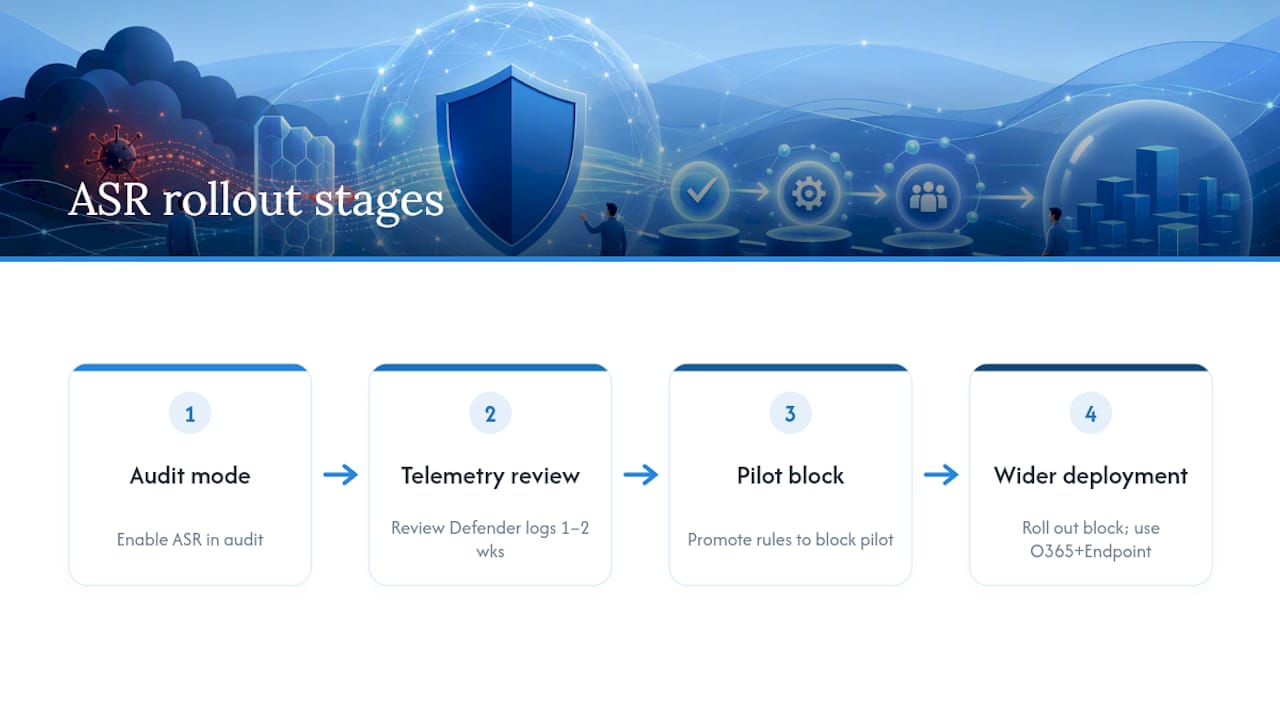
Don’t flip every ASR rule to “block” tenant-wide on a Monday morning. Run them in audit mode first, review the telemetry in Defender for a week or two, then promote the rules that show clean results to block mode for a pilot group before rolling out further. Combining Defender for Office 365 with Defender for Endpoint also gives you cross-signal correlation that neither product delivers alone, which matters when you’re trying to spot an attack in its early stages rather than after the encryption’s already run.
Pro Tip: Before enabling any ASR rule in block mode, check the Defender attack surface reduction report for existing audit-mode hits. A rule that would have blocked a legitimate line-of-business tool is far easier to fix in audit mode than to explain to a director after it breaks production.
OneDrive and SharePoint ransomware protection: the native recovery tools
Microsoft has built genuinely useful self-service recovery into SharePoint and OneDrive, and it’s worth knowing the exact numbers rather than assuming “there’s probably a Recycle Bin somewhere.”
According to Microsoft’s own documentation on ransomware protection in Microsoft 365, version history retains many versions of a file by default, the Recycle Bin holds deleted items for a few months, and the Files Restore feature lets both users and admins roll an entire OneDrive or document library back to any point within roughly the past month.
The recovery flow itself is reasonably well designed for the common case. When OneDrive’s detection system spots a pattern consistent with ransomware, it notifies the affected user, walks them through identifying and cleaning the infected device, and suggests a restore point to roll back to. The “Restore your OneDrive” feature can undo every action from the last 30 days in one pass.
Where this breaks down is scale and administrative compromise. Files Restore is a solid tool for one user’s OneDrive after a single infected laptop went rogue. It’s a much harder tool to rely on across hundreds of users simultaneously, and it does nothing to help if the attacker had global admin rights and deliberately purged retention settings or disabled the recovery features themselves before encrypting anything.
A few practical limits worth flagging before you assume native tools have you covered:
- Version history and Recycle Bin windows can be shortened or disabled by an admin, which means an attacker with admin rights can remove your safety net first.
- Files created after the point you’re restoring to get moved into the recycle bin during a restore and need manual reconciliation, so a bulk restore is disruptive, not instant.
- Files Restore covers roughly the last month. If an attacker sat dormant in your environment longer than that before triggering encryption, your restore point may already be compromised.
This is the gap that Microsoft 365 Backup or a third-party immutable backup solution exists to fill. An administered, immutable backup stored outside the primary tenant is the strongest available guarantee against a scenario where the attacker had the keys to your kingdom, because it can’t be altered or deleted from within the compromised tenant itself.
Detecting an active ransomware attack and containing it fast
Speed matters more than almost anything else once encryption has started, because automated sync can spread infected files from one laptop to an entire SharePoint site in minutes.
OneDrive’s detection engine works on known behavioural patterns: rapid mass file changes, suspicious extension renaming, ransom-note file creation. That’s useful, but it also means genuinely novel or zero-day variants can slip past pattern-based detection, which is exactly why layered EDR coverage matters rather than relying on OneDrive’s detection alone.
Defender XDR adds automated attack disruption on top of detection, correlating signals across identity, endpoint and email to isolate a compromised account or device automatically, sometimes before a human analyst has even looked at the alert. That automation buys you time in the window that matters most.
The moment you suspect an active incident, work through this sequence without waiting for full confirmation:
- Stop OneDrive and SharePoint sync on every affected and suspicious device immediately, to cut off the propagation path.
- Isolate affected endpoints from the network using Defender for Endpoint’s isolation feature or your EDR platform’s equivalent.
- Rotate credentials for every account that touched the affected systems, starting with anything holding admin privileges.
- Capture evidence before you clean anything: screenshots of ransom notes, affected file lists, sign-in logs covering the preceding 30 days.
- Check retention and backup integrity before running any restore, to confirm the attacker hasn’t already tampered with your recovery points.
Users are your earliest warning system, often faster than automated detection. Train staff to stop syncing and report unfamiliar file extensions or “HELP_DECRYPT” style filenames the moment they spot them, rather than waiting for IT to notice, since a single infected device can propagate encryption to shared libraries within minutes of the sync agent picking it up.
A 1 to 2 day tenant hardening checklist
None of this requires a quarter-long project. A focused IT team can materially reduce exposure within a couple of working days.
Day one, immediate toggles:
- Enforce MFA tenant-wide, with conditional access policies covering unfamiliar sign-in locations and unmanaged devices.
- Enable cloud-delivered protection in Microsoft Defender Antivirus and confirm tamper protection is active on every endpoint.
- Turn on the core ASR rules in audit mode: blocking Office child processes, blocking executable email content, and protecting
lsass.execredentials. - Confirm Defender for Office 365 anti-phishing, Safe Links and Safe Attachments policies are active, not sitting on tenant defaults.
Day two, verification and operational tidy-up:
5. Run a phishing simulation to check whether Defender for Office 365 policies actually catch what you think they catch.
6. Pick one test OneDrive account and validate that Files Restore genuinely works end to end, including how long the restore takes.
7. Check EDR telemetry is flowing correctly from every managed device, not just a sample.
8. Inventory every admin account in the tenant, remove standing access that isn’t justified, and confirm your break-glass account still works.
9. Update your incident runbook with whatever you just learned, because the theoretical version and the tested version are rarely identical.
Pro Tip: Run the phishing simulation and the Files Restore test on the same day. If either fails, you want to know while you’re still in hardening mode, not three months later during a real incident.
Building a ransomware runbook that actually works when tested
A runbook nobody has rehearsed is a document, not a plan. SharePoint’s own troubleshooting guidance notes that many organisations don’t test recovery until they’re already mid-incident, and that’s precisely when downtime and data loss compound fastest.
Four test scenarios cover most real-world situations:
- Single-file restore: confirm version history recovers one corrupted file cleanly.
- Site-level restore: roll back an entire SharePoint site to a point-in-time and check permissions survive the process.
- Mailbox rollback: verify Exchange retention lets you recover deleted or altered mail without gaps.
- Full bulk restore: test a large-scale OneDrive or Backup restore and time it, since throughput at scale is very different from a single-user restore.
Restoring at scale takes real time, and files created after your chosen restore point get shuffled into the recycle bin for manual reconciliation, which means the restore itself causes a second wave of disruption you need to plan around, not just the outage that triggered it.
| Runbook component | What it must cover |
|---|---|
| Roles and ownership | Who declares an incident, who executes restores, who talks to leadership |
| Communications plan | Internal staff notice, customer notice thresholds, PR involvement triggers |
| Evidence and escalation | What gets captured before cleanup, who escalates to law enforcement |
| Legal and insurance | Cyber insurance notification deadlines, regulatory reporting obligations |
| Test cadence | How often each scenario above gets rehearsed, and by whom |
Nobody’s runbook is complete until it’s been run against a fake incident at least once. Cloud9’s migration playbook covers similar runbook thinking from a different angle, worth a look if you’re building yours from scratch.
Cloud9’s approach to ransomware readiness in practice
Reading a checklist is one thing. Watching your own tenant fail (or pass) that checklist is another, and it’s usually more instructive than any amount of documentation.
Cloud9’s One Week Pilot runs a focused Office 365 phishing protection configuration over five working days, ending with a concrete before-and-after picture: which policies were on default settings, what got tightened, and what a simulated phishing attempt actually caught versus missed. It’s designed to surface exactly the gaps this article has been talking about, without requiring a lengthy audit engagement first.
That pilot sits alongside four baseline controls Cloud9 recommends for any Microsoft 365 tenant working towards a Zero Trust posture, detailed in the M365 security baseline guide. For teams that need the hardening, backup architecture and testing cadence managed rather than self-run, Cloud9’s backup, security and recovery services and ongoing Microsoft 365 support cover both sides of that gap.
What SMEs consistently get wrong about ransomware readiness
The mistake I see most often isn’t a missing tool. It’s businesses configuring something once, ticking the box, and never testing it again. MFA gets enforced and forgotten. ASR rules go into audit mode and stay there for a year because nobody circled back to promote them. A backup exists, but nobody’s ever actually tried restoring from it under time pressure.
Simple, tested processes beat elaborate, theoretical ones every time. A managed provider earns its keep by running the phishing simulations, restore tests and runbook rehearsals on a schedule, not just switching settings on once and moving on. If your team can’t commit to quarterly testing internally, that’s the signal to hand it to someone who will.
— Rob
Get your Microsoft 365 tenant tested, not just configured
This service is an alternative to piecing ransomware readiness together from documentation and hoping it holds. Where a checklist tells you what to switch on, a One Week Pilot actually runs the phishing simulation, checks your Files Restore works, and provides a concrete report of what was weak and what’s now fixed, rather than a theoretical audit you have to interpret yourself.

That pilot pairs naturally with ongoing Microsoft 365 support for tenants that need identity hardening, Defender policy tuning and ASR rollout managed on a continuing basis, and with backup, security and recovery services for organisations that need an immutable backup layer outside the tenant itself, not just native retention settings. If you’re an established SME or professional firm running Microsoft 365 and you’re not confident your restores would actually work under pressure, book a discovery call and get the One Week Pilot scoped against your own tenant.
FAQ
Does OneDrive offer ransomware protection?
Yes. OneDrive detects ransomware-like activity, notifies affected users, and offers a “Restore your OneDrive” feature that can undo up to 30 days of changes at once, per Microsoft’s own documentation. It’s a strong self-service tool for single-device incidents, but it doesn’t protect against an attacker who has compromised admin-level access.
What is the best software to protect against ransomware for Microsoft 365?
There’s no single product that covers it end to end. The strongest combination pairs Microsoft Defender for Office 365 and Defender for Endpoint for prevention and detection with an immutable backup, either Microsoft 365 Backup or a managed third-party solution, for recovery that survives admin-level compromise.
Should you turn on ransomware protection features in Microsoft 365?
Yes, immediately, and most of them cost nothing extra to enable. MFA, conditional access, Defender for Office 365 policies and ASR rules are included in most Microsoft 365 business and enterprise plans, and leaving them on default settings is one of the most common gaps attackers exploit.
Is Microsoft Office 365 secure by default?
Microsoft 365 ships with a solid security foundation, but default settings alone are not enough. Microsoft’s shared responsibility guidance is explicit that identity hardening, device configuration and data protection choices sit with the customer, not the platform.
How often should you test Microsoft 365 data recovery?
Test the core restore scenarios, single-file, site-level, mailbox rollback and full bulk restore, at least quarterly, and after any significant change to retention or backup configuration. Organisations that only test recovery mid-incident routinely discover gaps that cost them extra downtime, according to Microsoft’s SharePoint Online troubleshooting guidance.