DMARC for Office 365 admins: The p=none rollout runbook

Enable DMARC for Office 365 once SPF and DKIM are properly configured: publish a monitoring record with p=none at your DNS host, collect aggregate reports, then tighten to quarantine and reject as you confirm every legitimate sender passes authentication. Custom domains need the _dmarc TXT record added at the registrar or DNS provider, while *.onmicrosoft.com domains are edited through the Microsoft 365 admin centre.
TL;DR:
- Before publishing DMARC, verify SPF stays within its 10 DNS lookup limit and DKIM signing is enabled with propagated CNAME records.
- Publish the TXT record at _dmarc through your DNS host for custom domains; only *.onmicrosoft.com domains are edited in the Microsoft 365 admin center.
- Keep relaxed alignment settings, confirm every legitimate sender passes SPF or DKIM, then increase quarantine coverage gradually before moving to reject.
- Route aggregate reports to a dedicated mailbox and review parsed results weekly during rollout, then monthly, investigating unfamiliar sources that fail authentication.
- Forwarding can break SPF, while third party marketing mail may need DKIM signing or a dedicated subdomain to protect the primary domain.
Table of Contents
- Preflight checks: SPF and DKIM you must have before publishing DMARC
- How to author the DMARC TXT record and where to publish it
- A practical staged rollout: monitoring, decision points and safe increments
- How to receive, parse and act on DMARC aggregate reports
- Troubleshooting checklist: alignment failures, forwarding and non-Microsoft senders
- Our runbook and verification checklist for a safe DMARC rollout
- When to manage DMARC in-house and when to get professional help
- Cloud 9 managed services for Microsoft 365 and email authentication
- FAQ
- Sources
Preflight checks: SPF and DKIM you must have before publishing DMARC
DMARC does not authenticate mail on its own. It reads the results of SPF and DKIM checks and asks whether either of them aligns with the domain shown in the message’s “From” header. Publish DMARC without working SPF or DKIM and you have nothing for it to verify, so legitimate mail starts failing the moment you enforce a policy.
Start with SPF. Most Office 365 domains already carry include:spf.protection.outlook.com, but every additional marketing tool, CRM or helpdesk you plug in adds another include: statement. SPF stops evaluating after 10 DNS lookups, and anything beyond that returns a permanent error that can sink an entire domain’s authentication, a point Microsoft stresses when it recommends preferring DKIM signing for third-party services instead of stacking more SPF includes.
DKIM is the second piece. Microsoft 365 generates a key pair for each domain, but you still need to publish two CNAME records at your DNS host and switch DKIM signing on, either through the Microsoft Defender portal or Exchange Online PowerShell. Until that signing is enabled, mail leaves your tenant without a DKIM signature at all.
Before touching DMARC, confirm both are live:
- Check that your SPF record resolves to a single TXT entry with no more than 10 lookups.
- Enable DKIM for the domain in the Microsoft 365 Defender portal and verify the CNAME records have propagated.
- Send a test message to an external mailbox and inspect the message headers for
dkim=passandspf=pass. - Confirm the signing domain in the DKIM signature (
d=) matches your sending domain, not a default Microsoft subdomain.
Our own preflight checklist for SPF and DKIM walks through these checks in more depth if you want a step-by-step reference before moving on.
How to author the DMARC TXT record and where to publish it
A DMARC record is a single TXT entry at the _dmarc subdomain, built from semicolon-separated tags. A monitoring record for a brand new rollout typically looks like this:
v=DMARC1; p=none; rua=mailto:[email protected]; pct=100
Once reports confirm every legitimate sender authenticates correctly, a stricter version follows:
v=DMARC1; p=quarantine; rua=mailto:[email protected]; aspf=r; adkim=r
Each tag controls a specific behaviour:
| Tag | Meaning | Typical starting value |
|---|---|---|
| v | Protocol version | DMARC1 |
| p | Policy applied to the domain | none |
| pct | Percentage of failing mail the policy applies to | 100 |
| rua | Address for aggregate reports | mailto:address |
| ruf | Address for forensic reports | often omitted |
| fo | Failure reporting options | 1 |
| adkim | DKIM alignment mode (relaxed or strict) | r |
| aspf | SPF alignment mode (relaxed or strict) | r |
Microsoft’s own guidance confirms that DMARC is not managed inside the Microsoft 365 admin portal for custom domains: you create the _dmarc TXT record at your authoritative DNS host, whether that is a registrar, Cloudflare or another provider. The one exception is a *.onmicrosoft.com domain, which is edited directly through the Microsoft 365 admin centre because Microsoft itself controls that zone.
A few practical points before you publish:
- Note that
adkimandaspfdefault to relaxed (r) when omitted, which allows subdomain matches; strict (s) demands an exact match and is best left until later in the rollout. - Microsoft 365 will deliver aggregate reports to a valid
ruamailbox once your MX records point to Microsoft 365, but it does not generate forensic (ruf) reports, so leave that tag out unless another provider supplies it. - DNS propagation for a new TXT record is usually complete within a few hours, though some registrars and resolvers can take up to 48 hours to reflect the change everywhere.
- If your domains and DNS sit with a registrar you rarely touch, our domain and DNS management service handles record changes and propagation checks as part of ongoing support.
Keep the record on one line, double-check the semicolons, and avoid trailing spaces: a malformed TXT value is the most common reason a newly published DMARC record fails to validate.
A practical staged rollout: monitoring, decision points and safe increments
Publishing p=none is only the start. The value of DMARC comes from watching the aggregate reports that follow and tightening the policy once you trust what you see.
- Publish
p=nonewithpct=100and let reports accumulate for a sufficient period to capture typical sending patterns such as payroll runs or monthly newsletters. - Review each report for sending sources you did not expect: a CRM, a marketing platform or a forwarding service showing as unaligned is a signal to fix, not a reason to panic.
- Once every legitimate source passes SPF or DKIM alignment consistently, move to
p=quarantineat a low percentage of failing mail, so you can confirm the policy behaves as expected. - Increase the percentage applied by the policy in steps over time while monitoring reports, until full coverage at quarantine is reached.
- Repeat the same staged approach to move from quarantine to
p=reject, which Microsoft recommends as the final stage once authenticated sources are fully validated through the DMARC configuration guidance.
Leave adkim and aspf on relaxed throughout this process. Strict alignment is more precise but far less forgiving of subdomain variations, and tightening it too early is a common cause of mail that should have passed instead landing in quarantine.
Pro Tip: Keep a simple log of each policy change alongside the date and the report period it covers; when something breaks, you want to know exactly which change coincided with it.
How to receive, parse and act on DMARC aggregate reports
Aggregate reports are the feedback loop that makes staged rollout possible. Each report is an XML document covering a specific time window, containing a policy_published block describing the policy you published, and a series of records showing source IP addresses, message counts and the SPF and DKIM authentication results for mail claiming to come from your domain. The structure and delivery requirements for these reports are set out in the IETF aggregate reporting draft, which also covers verification steps for report destinations.
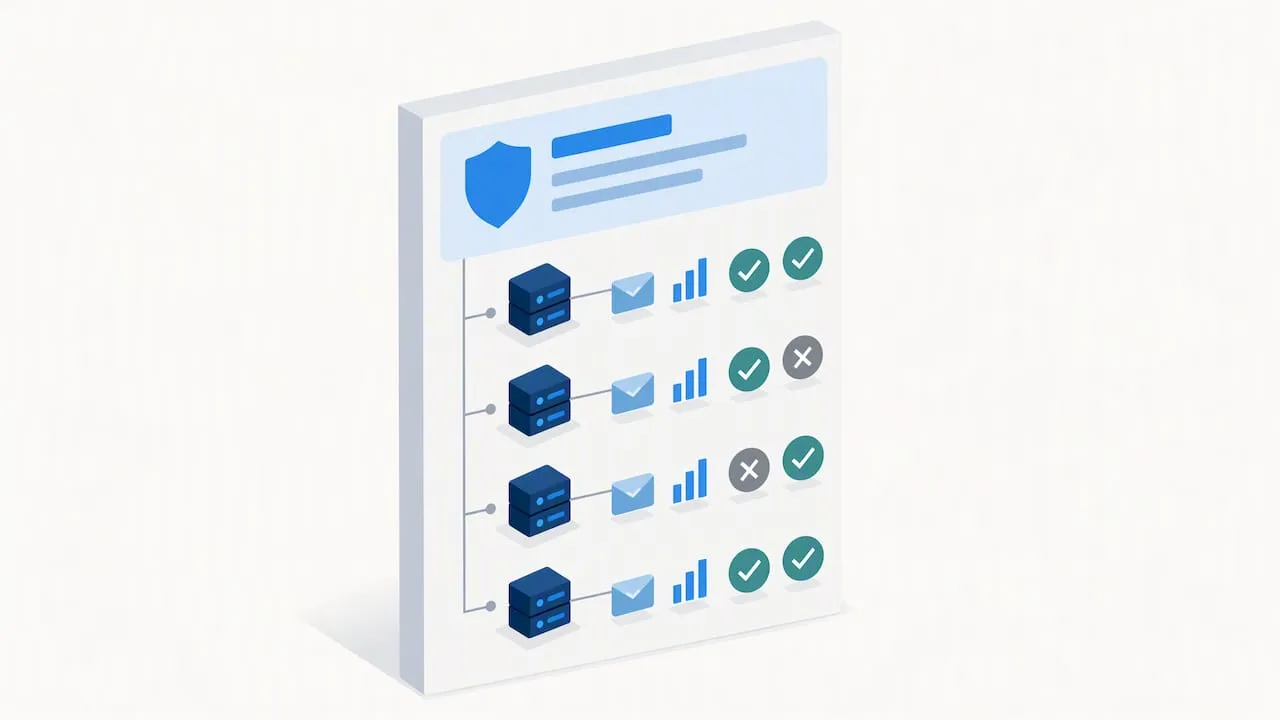
Most providers send one aggregate report per sending domain per day, which means a single mailbox can quickly fill with dozens of XML attachments once multiple domains and senders are in scope, according to the IETF draft specification.
A practical workflow looks like this:
- Point
ruaat a dedicated mailbox rather than a personal inbox, so reports do not get lost among day-to-day mail. - Use a parser, whether a free script or a hosted aggregator service, to turn the XML into a readable summary of sources, volumes and pass or fail rates.
- If you want a third party’s address to receive your reports, verify that a
_report._dmarcrecord exists on their domain authorising receipt, a step the IETF draft specifies to stop reports being sent to unrelated destinations. - Set a recurring calendar reminder, weekly during rollout and monthly afterwards, to review new sending sources that appear in reports.
- Treat any unfamiliar source IP with a failing result as a prompt to investigate rather than ignore, since it may be a spoofing attempt or a forgotten sender that still needs fixing.
Once you are past the initial rollout, reports settle into a routine check: confirm no new unauthenticated sources have appeared, and confirm volumes from known senders look consistent with previous periods.
Troubleshooting checklist: alignment failures, forwarding and non-Microsoft senders
Most DMARC problems come down to misalignment, not a complete authentication failure. The diagnostic workflow Microsoft recommends starts with the message headers rather than guesswork, as set out in its email authentication troubleshooting guide.
- Open the
Authentication-Resultsheader and note theheader.fromdomain, thesmtp.mailfromdomain, and theheader.dvalue from the DKIM signature. - Check whether SPF’s
smtp.mailfromdomain matchesheader.from: if it does not, SPF alignment fails even though SPF itself may have passed. - Check whether DKIM’s
header.dmatchesheader.from: a mismatch here means DKIM alignment fails even with a valid signature. - If both SPF and DKIM fail alignment, DMARC fails regardless of whether the underlying checks passed individually, and the fix depends on which one broke and why.
- Identify the specific cause: a message forwarded by a third party, a marketing platform sending on your behalf without DKIM signing, or a genuinely unauthorised sender.
Each cause has a different remedy:
- Forwarding commonly breaks SPF because the forwarding server’s IP is not in your SPF record, though DKIM usually survives forwarding unless the message body is altered along the way, a distinction covered in Microsoft’s email authentication overview. ARC headers or Enhanced Filtering for Connectors help preserve authentication results through complex routing.
- Marketing and transactional platforms that cannot sign with your domain’s DKIM key are best moved to a dedicated subdomain, such as
marketing.example.com, with its own DMARC policy, so a failure there does not affect your primary domain’s reputation. - SPF permerror or temperror results usually trace back to too many DNS lookups or a broken nested include: simplify the record, remove unused includes, and confirm the domains referenced in those includes still resolve correctly.
- Exchange Online connectors that modify messages in transit, such as adding disclaimers, can break DKIM signatures applied upstream; our partner guide on hardening Exchange Online spam filtering covers connector configuration that avoids this.
Working through headers methodically rather than changing settings at random saves time and avoids accidentally breaking a sender that was authenticating correctly all along.
Our runbook and verification checklist for a safe DMARC rollout
Running DMARC well is less about the DNS record itself and more about the process around it. The runbook we follow on managed rollouts covers eight steps:
- Inventory every system that sends mail as your domain, including CRM, helpdesk, invoicing and marketing platforms.
- Confirm SPF and DKIM are correctly configured and passing for each of those systems individually.
- Publish the
p=nonemonitoring record and confirm reports start arriving within a few days. - Parse the first full week of reports and flag any source that is not authenticating.
- Fix each flagged source, either by enabling DKIM signing, adding an SPF include, or moving it to a subdomain.
- Re-check reports for a second monitoring window before any policy change.
- Move to
p=quarantineat a low percentage, then increase gradually while watching reports. - Move to
p=rejectonly once quarantine has run cleanly through a full reporting cycle.
During managed rollouts we also check Exchange Online connectors for message modification that could break DKIM, confirm DKIM selectors are correctly published at the DNS host, and keep a record analysis log so policy decisions are based on evidence rather than a fixed timetable.
Pro Tip: Treat the rollout as a project with a start and end date rather than a one-off DNS change; domains that stall at p=none indefinitely get none of DMARC’s protection against spoofing.
When to manage DMARC in-house and when to get professional help
A small IT team with one or two domains and a handful of sending platforms can usually run this process themselves. The runbook above is not complicated; it just takes consistent attention over several weeks.
Where it gets harder is high-volume transactional mail, multiple domains, acquired subsidiaries with their own sending habits, or routing through several connectors and third-party platforms at once. Report volumes multiply, and a missed misalignment can mean genuine customer mail silently failing once you reach p=reject. That is where ongoing, managed monitoring earns its keep rather than a one-off setup.
— Rob
Cloud 9 managed services for Microsoft 365 and email authentication
If your domains, mailboxes and sending platforms span more than one team, we handle the DMARC rollout end to end rather than leaving it as another task on an already full IT plate. That means inventorying your senders, making the DNS changes, enabling DKIM correctly across your Microsoft 365 tenant, and reading the reports week by week so the move from monitoring to enforcement happens on evidence, not guesswork.

This sits alongside the wider managed cloud services we provide for Microsoft 365 and Google Workspace environments, covering ongoing administration, backup and security as well as email authentication. If you would rather have someone else own the monitoring and the decision points, get in touch for a scoping call and we will map out what your domains need before anything changes in your DNS.
FAQ
What is DMARC in DNS?
DMARC is a DNS TXT record published at _dmarc.yourdomain.com that tells receiving mail servers how to handle messages claiming to be from your domain that fail SPF or DKIM alignment. It also specifies an address for receiving aggregate reports on authentication activity, as set out in Microsoft’s DMARC configuration guidance.
How do I fix a DMARC policy that is not enabled?
Confirm SPF and DKIM are correctly configured and passing first, since DMARC depends on at least one of them aligning with your domain. Then publish a _dmarc TXT record at your DNS host starting with p=none, which activates monitoring without affecting mail delivery.
How long does it take for a DMARC record to update?
DNS propagation for a new _dmarc TXT record is typically complete within a few hours, though some resolvers and registrars can take up to 48 hours to reflect the change everywhere. Aggregate reports usually begin arriving within a day or two of the record going live.
How do I set up DMARC records on a domain registrar?
Add a new TXT record at the host name _dmarc through your registrar’s DNS management panel, with a value such as v=DMARC1; p=none; rua=mailto:[email protected]. The exact menu differs between registrars, but all of them support adding a custom TXT record at a specific subdomain.
Can I apply a different DMARC policy to subdomains?
Yes, a subdomain can carry its own _dmarc record, or you can use the sp= tag in the parent domain’s record to set a separate policy for all subdomains that do not publish their own. This is particularly useful for marketing or transactional subdomains that authenticate differently from your main sending domain.
Sources
- Email authentication secops guide - Microsoft Defender for Office 365 | Microsoft Learn
- draft-ietf-dmarc-aggregate-reporting-32