Most organisations should start with the Admin console’s built-in data import tools if they have 1,000 users or fewer, and move to Google Workspace Migrate only once they cross that threshold or hit complex permissions and compliance needs. PST-heavy environments get their own route through GWMMO. If your source system involves cross-domain consolidation or strict data retention rules, a managed partner like Cloud 9 removes most of the risk.
TL;DR:
- For organizations with 1,000 users or fewer, the Admin console’s built-in data import tools are sufficient, but larger or complex migrations require Google Workspace Migrate or managed services.
- Migration from Exchange, SharePoint, IMAP servers, or another Google Workspace domain follows specific official guides, with PST files best handled by GWMMO.
- Proper planning of user mapping, domain verification, backups, and testing delta imports is critical to avoid errors such as missing permissions or failed batch processing.
- Cloud 9 offers managed migration services that include discovery, staged execution, validation, and staff communication to minimize downtime and prevent common mistakes.
- The main risk areas are untested delta imports and incorrect permission mappings, which are often overlooked but can cause significant delays or data loss.
Table of Contents
- Which migration method should you choose for Google Workspace?
- Step-by-step Google Workspace migration checklist
- What each Google migration tool actually does
- What goes wrong, and how to catch it before it does
- How Cloud 9 approaches a Google Workspace migration
- Why most migration guides get the risk assessment backwards
- Cloud 9: managed migration services and next steps
- Official documentation and practical resources
- Sources
- FAQ
Which migration method should you choose for Google Workspace?
The right tool depends almost entirely on where your data lives now and how many mailboxes you’re moving. Google publishes a clear migration product matrix that ties tool choice to organisation size, and it’s worth treating as your starting reference rather than guessing.
Here’s how the common sources map to methods:
- Exchange or Exchange Online: use the Admin console data migration service for mail, calendar and contacts, following the official import guidance.
- SharePoint or OneDrive: covered by dedicated import guides that handle file structure and permissions during transfer.
- IMAP-based providers: Admin console import supports most standard IMAP servers directly.
- Another Google Workspace domain: use data import tools built for domain-to-domain transfer, including user and group remapping.
- PST files from Outlook: GWMMO is the purpose-built tool for pulling PST and Outlook profile data into individual Gmail accounts.
The 1,000-user line isn’t arbitrary. Below it, the Admin console tools give you enough throughput and control without needing dedicated infrastructure. Above it, Google Workspace Migrate becomes the recommended path because it runs from cloud or on-premises node servers and gives far more granular control over batching, permissions and error handling.
Certain situations push you toward a managed partner regardless of headcount: nested SharePoint permission structures, regulated data with retention obligations, or consolidating several acquired domains into one tenant. These aren’t technically impossible to self-manage, but the margin for costly error grows fast.
Step-by-step Google Workspace migration checklist
A migration succeeds or fails on the quality of the plan, not the tool. Follow this sequence and you’ll catch most problems before they become outages.
- Discovery. Inventory every user, group, shared drive, Site and chat history you need to move. Note which mailboxes are unusually large. Confirm whether legacy G Suite licences need changing to a Business or Enterprise edition as part of the move.
- Pre-migration prep. Verify domain ownership in the Admin console, provision the correct licences, draft a staff communications timeline, and take backups of source data before you touch anything.
- User mapping. Build your CSV or import maps linking source accounts to destination Workspace accounts. Set up authorisation and, where required, domain-wide delegation so the migration tool can act on users’ behalf.
- Initial execution. Run the primary import, watching for API throttling and failed batches. Retry failures individually rather than rerunning the whole job.
- Delta imports. Schedule follow-up imports to capture anything created or changed after the first pass, since delta imports depend on domain-wide delegation being correctly configured from the outset.
- Verification and cutover. Sample-audit a cross-section of users, confirm mail flow, check Drive permissions survived the transfer, get sign-off from stakeholders, and know your rollback trigger before you flip DNS or MX records.
Pro Tip: Run your delta import in a sandbox account before cutover day. Token expiry and missing delegation scopes are the two most common reasons a “final” import silently misses data, and testing it once in isolation costs you an hour but can save a week of clean-up.
What each Google migration tool actually does
Picking the right product matters less than understanding what it won’t do for you. Each of the three main tools solves a different operational problem.
- Admin console data import is self-guided and works well for small to medium migrations. It needs no infrastructure beyond admin credentials and API authorisation, and most IT teams can run it without external help.
- Google Workspace Migrate is built for enterprise-scale jobs. It requires installing the platform and configuring node servers, whether hosted in the cloud or on-premises, and demands a higher level of technical skill to configure batching, throughput and error recovery correctly.
- GWMMO works at the individual user level, importing PST files and Outlook profile data straight into Gmail. It’s the right call when your migration is essentially an Outlook-to-Gmail exercise rather than a full server migration.
The trade-off between cloud and on-premises nodes usually comes down to who controls your existing infrastructure and how sensitive the data is. On-premises nodes keep data inside your network boundary during transfer, which matters for some compliance regimes, but they demand more hands-on server management.
This is where a managed migration service earns its cost back quickly. Project governance, structured testing, and someone accountable for delta handling and legal retention questions reduce the chance of an expensive mistake far more than the licence fee costs.
What goes wrong, and how to catch it before it does
Most migration failures trace back to the same handful of causes, and nearly all of them are avoidable with proper checks.
- Missing domain-wide delegation, which silently blocks delta imports from running at all.
- Incorrect user mapping in the CSV, sending data to the wrong destination account.
- Drive permission mismatches, where shared file access doesn’t survive the transfer intact.
- Oversized mailboxes or unusual attachment types tripping import limits.
- API throttling or expired credentials interrupting a job midway.
Run these verification checks before you call it done: end-to-end sample checks on a representative slice of users, spot-checks on shared drive and folder permissions, a delta import validation pass, and basic mail flow and calendar smoke tests. Google’s own Teams data import guidance stresses staged validation over a single big-bang check, and that’s sound advice regardless of tool.
Timeline expectations depend heavily on user count, total data volume, and how well your source system performs under sustained API load. A 200-user IMAP migration might complete in days; a 5,000-user Exchange consolidation with legacy permission structures can run for weeks once you account for staged cutovers.
How Cloud 9 approaches a Google Workspace migration
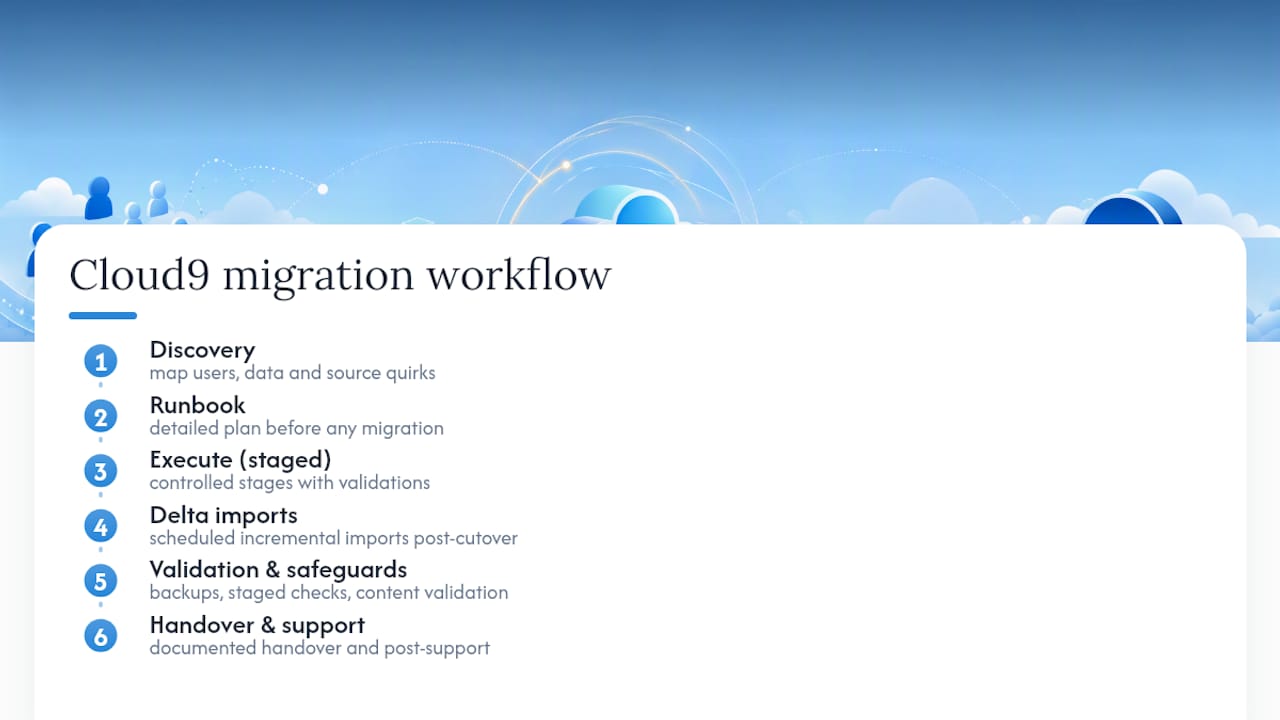
Cloud 9 runs migrations as a structured project, not a single import job. Every engagement starts with discovery: mapping users, data volumes and source system quirks before anything moves. From there, we build a runbook, execute in controlled stages, handle delta imports on a defined schedule, and hand over with documented post-migration support.
The projects that go wrong are almost never the ones with the most data. They’re the ones where nobody planned for delta imports, tested domain-wide delegation in advance, or told staff what would happen to their inbox on cutover day.
Safeguards built into every project include pre-migration backups, staged validation checks against the website content migration workflow methodology, a staff communications plan, and a formal service handover once verification completes.
Author: Rob
Why most migration guides get the risk assessment backwards
Most advice on this topic obsesses over which tool to click, when the real risk sits somewhere else entirely: delta imports and permission mapping. I’d argue the industry underrates domain-wide delegation failures as a cause of migration disasters, largely because they’re invisible until someone notices a folder is missing three weeks later, not on cutover day.
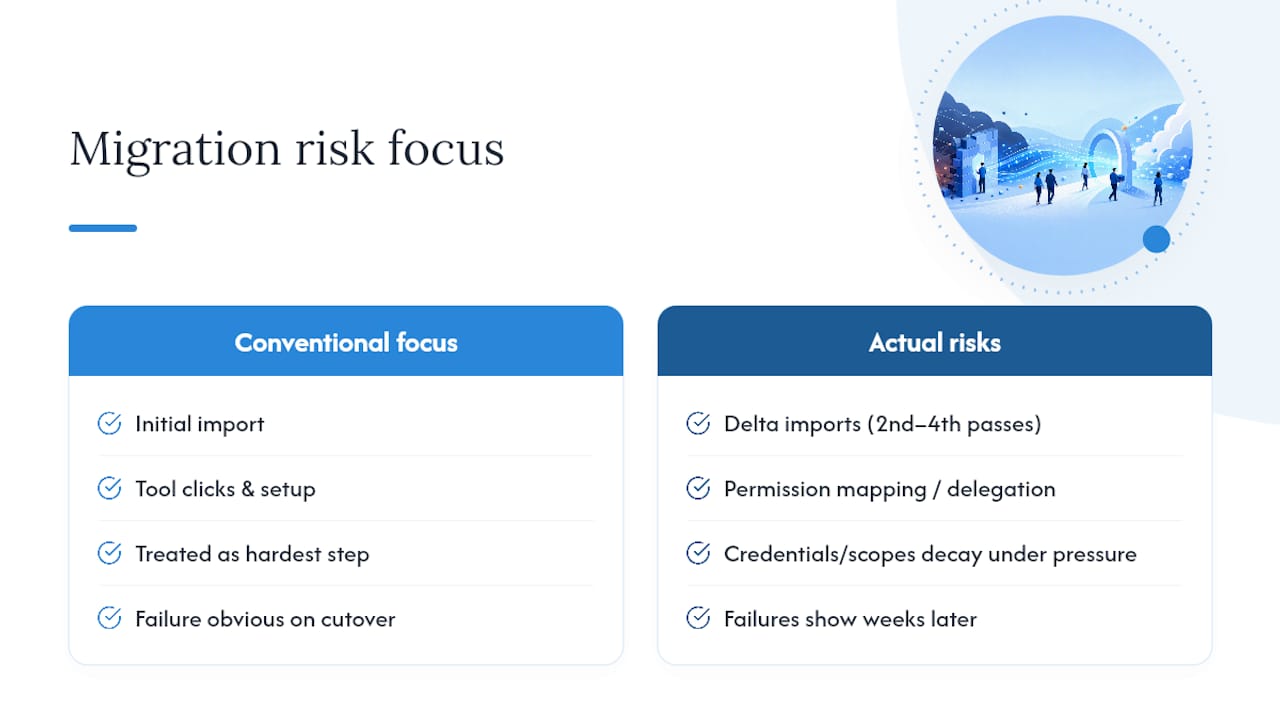
The conventional wisdom treats the initial import as the hard part and the delta import as a formality. That’s backwards. The first import is usually well-tested by Google’s own tooling. It’s the second, third and fourth delta passes, run under time pressure after the “main” migration is declared done, where credentials expire and delegation scopes quietly drop.
If you take one thing from this, prioritise the sandbox test of your delta process before you touch production data. User count and source system matter for planning your timeline, but they rarely cause the failures that end up costing real money. Missing delegation and untested delta runs do. Get that right, and the rest of the migration checklist is largely mechanical.
— Rob
Cloud 9: managed migration services and next steps
A DIY migration using the Admin console works well for straightforward cases, but once you’re weighing delta imports, domain-wide delegation, or a compliance requirement you can’t afford to get wrong, the calculus changes. Cloud 9 runs the whole project for you: discovery, staged execution, validated imports, and a communications plan that keeps staff informed instead of blindsided on cutover morning. The result is minimal downtime and a documented handover, not a scramble to fix missing permissions after the fact.

If you’re ready to scope a migration, get in touch with your user count, primary source systems (Exchange, SharePoint, another Workspace domain, or PST files), and any compliance or retention requirements you’re working under. That’s enough for Cloud 9 to put together a realistic plan and timeline. Start the conversation through Cloud 9’s cloud migration support page and get a scoped proposal back before you commit to a cutover date.
Official documentation and practical resources
Keep these open while you plan:
- Google Workspace migration product matrix for tool selection by scale.
- Admin console data import guides for source-specific steps.
- Google Workspace Migrate documentation for enterprise deployments.
- GWMMO download page for PST and Outlook imports.
- Google Workspace support from Cloud 9 for a managed alternative.
Sources
- Google Workspace migration product matrix | Data migration | Google Workspace Help
- Import your organization’s data to Google Workspace | Getting started | Google Workspace Help
- About Google Workspace Migrate
FAQ
How do I migrate Google Workspace to another Google Workspace?
Use the Admin console’s data import tools built specifically for domain-to-domain transfers, mapping source users to destination accounts via CSV before running the import. For large or complex tenant consolidations, Google Workspace Migrate gives you finer control over batching and permissions.
How do I migrate my data from Google Workspace to Office 365?
Microsoft provides its own migration tooling for pulling data from Google Workspace into Microsoft cloud services, typically handling mail, calendar and contacts through a supported connector. If your organisation runs both platforms during a transition, Microsoft 365 support from Cloud 9 can help manage the parallel environment.
Can I migrate my existing email to Google Workspace?
Yes. Google’s Admin console data import supports migration from Exchange, IMAP providers and other common mail systems directly, using the data import tool to handle authorisation and transfer.
Does Gmail have a migration tool?
Gmail itself doesn’t include a standalone migration tool for administrators, but Google Workspace provides dedicated products for this: the Admin console data import service for most sources, and GWMMO specifically for PST and Outlook-based email migration.