

Configure SPF and DKIM first, confirm both pass with real mail flow, then publish a DMARC record with p=none and watch reports for at least 48 hours before touching enforcement. Skipping the observation window is the single most common cause of legitimate mail getting blocked. Verification isn’t optional here — you check headers, run lookup tools, and let aggregate reports confirm alignment before you ever move to quarantine or reject.
TL;DR:
- Publishing an SPF record exceeding 10 DNS lookups or containing multiple SPF TXT records causes failures; merge all senders into a single record and reduce nested includes.
- Generate 2048-bit DKIM keys, split long DNS strings into multiple quotes, and verify the published record matches the signing server with
dig TXT.- Start DMARC with a
p=nonepolicy, monitor reports for at least 48 hours, then gradually increase enforcement based on consistent passing and report analysis.- Confirm that SPF, DKIM, and DMARC pass in headers for all email sources, especially third-party platforms, before moving to stricter policies.
- Regularly review aggregate report data, identify misconfigured senders, and coordinate DNS changes with relevant teams to prevent mail disruptions.
Table of Contents
- What do you need before changing DNS?
- How do you write a compliant SPF record?
- How do you generate and publish DKIM keys?
- How do you build and stage a DMARC record?
- How do you verify each protocol is actually working?
- Why do SPF, DKIM or DMARC checks fail?
- How do you use DMARC reports to fix problems?
- Where can help be found with DNS and Microsoft 365 setup?
- Practical perspective: coordinating the rollout
- Get managed support for SPF, DKIM and DMARC
- Sources
- FAQ
What do you need before changing DNS?
Get access sorted before you write a single record. Most SPF DKIM DMARC setup failures trace back to someone editing a zone file without knowing who else sends mail from that domain.
Confirm you can log into the domain registrar or DNS host, and check whether a change window or approval process applies. If an external provider manages your zone, get their update turnaround time in writing before you plan a rollout.
Build a full inventory of everything that sends mail as your domain: your primary mail platform, marketing tools, CRM platforms, invoicing systems, helpdesk software and any transactional email service (payment receipts, password resets, notifications). Missing one sender here is what causes silent bounces weeks later.
- List every SMTP host and sending IP, including third-party platforms
- Note which services support SPF includes and which need a dedicated DKIM selector
- Create a dedicated mailbox (e.g.
[email protected]) to receive aggregateruareports - Confirm someone owns that mailbox and has a plan to parse the XML it receives
That mailbox matters more than it sounds. Aggregate reports arrive daily, in bulk, and unread reports are worthless reports.
How do you write a compliant SPF record?
An SPF TXT record tells receiving servers which hosts are allowed to send mail for your domain. A typical record looks like this:
v=spf1 ip4:203.0.113.10 include:_spf.google.com include:mailplatform.com -all
Each mechanism does a specific job. ip4/ip6 authorises a specific address; include pulls in another organisation’s own SPF record (used heavily by cloud mail and marketing platforms); a and mx authorise hosts listed in your domain’s own A or MX records. The qualifier at the end decides what happens on failure: -all hard-fails unauthorised senders, ~all soft-fails them (mail is flagged but usually still delivered). Most admins run ~all during testing and tighten to -all once they trust the record.
Two rules trip up almost everyone. First, a domain can only have one SPF TXT record — publishing a second one to “add” a sender invalidates the lot and triggers a PermError. Second, SPF evaluation is capped at 10 DNS lookups, and every include can nest further lookups inside it. Stack four or five SaaS platforms with their own includes and you’ll blow the limit without realising it.
- Merge every sender into a single SPF record rather than publishing several
- Replace deeply nested includes with direct
ip4/ip6addresses where a vendor publishes static ranges - Re-check the lookup count after adding any new sending platform, not just at initial setup
Validate with dig TXT yourdomain.com from a terminal, or run the domain through MXToolbox’s SPF checker, which will count lookups and flag syntax errors. A PermError almost always means you’ve exceeded the lookup limit or published a malformed mechanism; a plain Fail means the sending IP genuinely isn’t listed.
Pro Tip: Run the MXToolbox SPF lookup count check every time you onboard a new marketing or invoicing tool. Lookup limits creep up quietly and the record that passed in January can silently fail by June.
How do you generate and publish DKIM keys?
DKIM signs outgoing mail with a private key so receivers can verify the message wasn’t altered in transit, using a matching public key published in DNS. Generate at least a 2048-bit key pair — 1024-bit keys still work in places but are considered weak by current standards.
Pick a selector name (the string before ._domainkey in the DNS record) and stick to a convention you can track across platforms: s1, mail, google, or a date-based selector like dkim202601 if you plan to rotate keys periodically. Each sending platform typically generates its own key pair and selector, so a domain using Microsoft 365, a CRM and a marketing tool will usually end up with three separate DKIM selectors, all published simultaneously.
The public key gets published at:
selector._domainkey.yourdomain.com
as a TXT record containing v=DKIM1; k=rsa; p= followed by the base64-encoded public key. Here’s where most setups quietly break: a 2048-bit key easily exceeds 255 characters, and a single DNS TXT string is capped at that length. If you paste the whole key into one unbroken string, DNS truncation cuts it off and DKIM fails silently. Split the value into multiple quoted strings within the same record instead:
"v=DKIM1; k=rsa; " "p=MIGfMA0GCSqGSIb3DQEBAQUAA4GNADCBiQKBgQC..." "...restofkey"
- Generate keys at 2048-bit minimum and store the private key only on the signing server
- Split any key longer than 255 characters into multiple quoted DNS strings
- Confirm the DNS provider concatenates the strings correctly rather than truncating them
Test the published record against the signing host using opendkim-testkey, which checks that the key on your mail server matches what’s actually published in DNS. Then send a real test message and check the d= domain in the DKIM signature matches your sending domain, since a mismatch here is what breaks DMARC alignment later.
Pro Tip: Always run dig TXT selector._domainkey.yourdomain.com after publishing and count the characters manually. A key that looks fine in your DNS panel can still be truncated on the wire if your provider mishandles multi-string TXT records.
How do you build and stage a DMARC record?
A DMARC record tells receiving mail servers what to do when SPF or DKIM checks fail, and where to send reporting data. A sensible starting point:
v=DMARC1; p=none; rua=mailto:[email protected]; pct=100; adkim=r; aspf=r
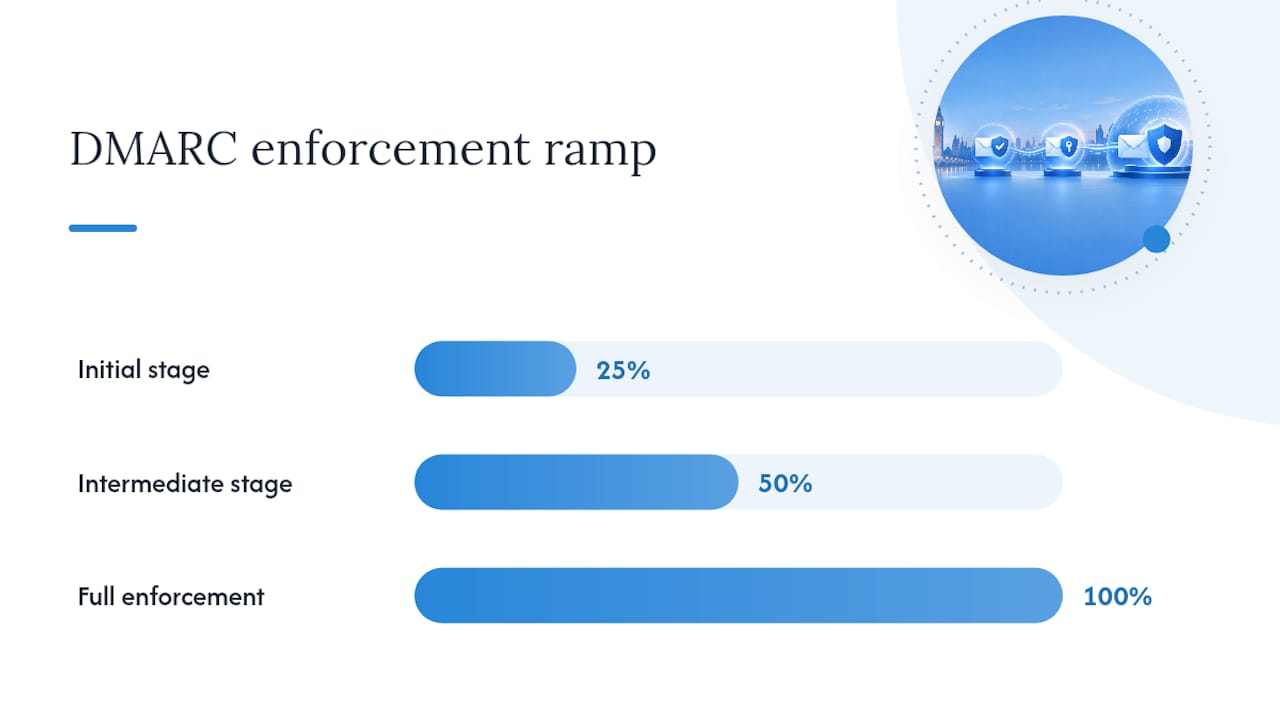
p= sets the policy: none (monitor only), quarantine (send failures to spam) or reject (block outright). rua= is the address for aggregate reports, essential for seeing what’s actually happening before you enforce anything. pct= controls what percentage of failing mail the policy applies to, letting you ramp enforcement gradually rather than flipping a switch on 100% of traffic. adkim/aspf set alignment mode: r for relaxed (subdomains count as a match) or s for strict (exact domain match required).
Start with p=none and let SPF and DKIM authenticate real traffic for at least 48 hours before considering anything stricter. In practice, many admins watch reports for an extended period to ensure all sending patterns are captured. Once reports show all legitimate senders passing consistently, raise pct in stages, say 25%, then 50%, then 100%, at p=quarantine before ever moving to p=reject. Rushing straight to reject is how legitimate customer invoices end up in spam folders during a busy month.
- Publish
p=nonefirst and confirm rua reports are arriving in your dedicated mailbox - Move to
p=quarantinewith a lowpctvalue once every real sender passes - Only reach
p=rejectafter multiple report cycles show zero unexplained failures
How do you verify each protocol is actually working?
Header inspection is the fastest sanity check available. In Gmail, open a message and select “Show original”; in Outlook, view the message source. You’re looking for three results in the Authentication-Results header: spf=pass, dkim=pass and dmarc=pass. If any one of them shows fail or none, that’s your starting point for troubleshooting, not a reason to panic.
- Send a test message from every sending platform on your inventory list, not just your primary mail server.
- Run the domain and headers through mail-tester.com, which scores authentication, content and blacklist status in one pass.
- Check the SPF record with
dig TXT yourdomain.comand MXToolbox to confirm the lookup count and syntax are clean. - Run
opendkim-testkeyagainst each selector to confirm the signing key matches the published DNS record. - Keep screenshots or exported logs of each passing test before you raise the DMARC policy, since you’ll want evidence if something breaks later.
Testing every sending source matters more than testing once. A domain can pass perfectly from its main mail server while a forgotten invoicing tool fails silently in the background for months.
Why do SPF, DKIM or DMARC checks fail?
Most failures fall into a handful of predictable categories, and each has a specific fix rather than a generic “start again.”
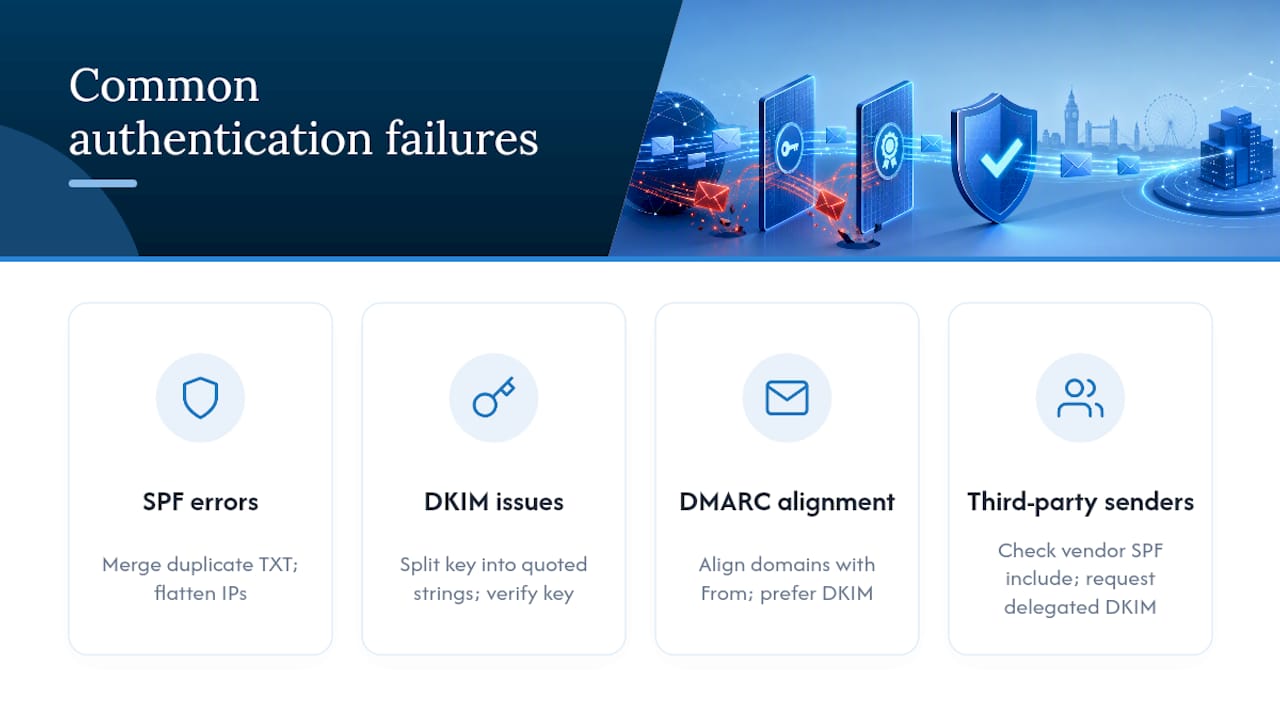
Too many SPF lookups or a duplicate record. If MXToolbox reports PermError, check for a second SPF TXT record first (merge them into one) and then count nested lookups from every include. Flatten static IP ranges directly into the record where the vendor allows it.
DKIM shows fail despite a correct-looking key. This is almost always DNS truncation from an unsplit long key, or a private key on the server that no longer matches what’s published. Republish the full key across multiple quoted strings and re-run opendkim-testkey.
DMARC fails despite SPF or DKIM passing individually. This is an alignment problem: the domain in the SPF/DKIM check doesn’t match the visible From address closely enough for the alignment mode you’ve set. Forwarded mail commonly breaks SPF but DKIM signatures usually survive the trip, so lean on DKIM alignment for domains that get forwarded a lot, and consider ARC headers where your mail platform supports them.
A third-party sender keeps failing. Confirm the vendor’s own SPF include is current and ask whether they support delegated DKIM signing with your domain’s own selector rather than theirs.
Pro Tip: Keep a simple spreadsheet mapping each sending platform to its SPF mechanism and DKIM selector. When something fails, you’ll know in seconds which vendor to call instead of guessing across a dozen services.
How do you use DMARC reports to fix problems?
Aggregate rua reports arrive as XML, which is fine for machines and unreadable for a human trying to triage a Tuesday morning inbox. A reporting or visualisation service turns that raw data into a dashboard showing which IPs are sending, whether they’re passing SPF and DKIM, and how much volume each source represents.
- Sort reporting data by volume first, since the top three offending IPs usually account for most failures
- Map each failing IP back to a known sending platform from your original inventory
- Schedule fixes against the specific vendor or system, rather than adjusting your DMARC policy to compensate
- Retain report history for at least a few months so you can prove a fix actually worked over time
- Escalate to the vendor directly if a third-party platform keeps failing despite correct configuration on your end
Treat the reports as the deciding evidence for any policy change, not gut feeling about which senders “should” be fine. Organisations running several sending platforms benefit from setting up a reporting service early, since mapping report IPs back to vendors is what actually shortens the time to full enforcement.
Where can help be found with DNS and Microsoft 365 setup?
Cloud9’s four-phase email domain migration runbook documents the exact sequencing described above, built for teams managing DNS changes without breaking mail flow mid-project. For domains living inside Microsoft 365, DNS and Cloudflare management support covers correctly published records and the ongoing edits that key rotation demands.
The practical outcomes worth flagging: correct DKIM signing across every sending platform, a proper SPF audit that catches lookup-limit problems before they cause PermError, and DMARC reporting ingestion set up so aggregate reports get parsed rather than ignored. If you’re running Microsoft 365 alongside marketing and CRM platforms, the phishing protection pilot for Office 365 admins is a useful companion reference for the wider authentication picture.
Practical perspective: coordinating the rollout
The technical steps are the easy part. What actually derails an SPF DKIM DMARC setup is skipping the conversation with marketing, CRM owners and vendor contacts before changing anything. Schedule DNS edits inside a proper maintenance window, keep a written rollback record, and raise enforcement in small increments. Reports, not confidence, should decide when you move to reject.
— Rob
Get managed support for SPF, DKIM and DMARC
DNS and Microsoft 365 configuration can be run as a managed service, so SPF audits, DKIM signing checks and DMARC report ingestion can happen on a schedule rather than whenever someone remembers. This approach replaces chasing a spreadsheet of sending platforms every time a vendor changes their infrastructure with a team tracking every record across the mail estate.

If your domain runs on Microsoft 365, Microsoft 365 support covers the tenant-side configuration that has to line up with your DNS records. For the DNS and reporting side specifically, managed cloud services covers ongoing record maintenance, key rotation and report monitoring after the initial rollout. Book an assessment with Cloud9 to get your current SPF, DKIM and DMARC configuration reviewed before you touch a single DNS record.
Sources
- Set up DMARC to validate email in Google Workspace Help
- Email authentication and DMARC configuration — Microsoft documentation
FAQ
How do I set up SPF, DKIM and DMARC?
Configure SPF as a single TXT record covering every sender, then publish DKIM keys for each platform and confirm both pass in real mail headers. Only after that should you publish DMARC starting at p=none, watching aggregate reports for at least 48 hours before raising enforcement.
What is SPF, DKIM and DMARC, explained simply?
SPF lists which servers are allowed to send mail for your domain, DKIM signs messages cryptographically so receivers can detect tampering, and DMARC tells receiving servers what to do when either check fails while enforcing alignment between the visible From domain and the verified sender. All three work together rather than as separate, unrelated settings.
Does DMARC need both SPF and DKIM?
DMARC only needs one of SPF or DKIM to pass and align, not both simultaneously. In practice, running both gives redundancy: SPF often breaks on forwarded mail, but DKIM signatures typically survive forwarding, so having both configured protects deliverability when one mechanism fails.
What should my DMARC policy be set to?
Start with p=none so you can monitor aggregate reports without affecting mail delivery, then move to p=quarantine at a low pct value once every legitimate sender passes consistently. Reach p=reject only after several report cycles confirm no unexplained failures, following the staged deployment pattern most vendor guidance recommends.