AI email triage sorts incoming mail by urgency and intent, then routes, flags, or drafts replies automatically. For most small and medium UK firms, the fastest safe start is a lightweight automation flow inside the platform you already use, Microsoft 365 or Gmail, rather than a new standalone tool. Run it as a week-long pilot first: expect faster response to genuinely urgent messages and far fewer enquiries buried under newsletters and CCs.
TL;DR:
- Most small and medium UK firms should start with a simple, native automation flow inside their existing platform for quick, safe implementation.
- The best approach depends on your setup: agent layers suit delegation, AI clients are quick for solo users, and flows offer more control within Microsoft 365 or Gmail.
- Running a focused, one-week pilot with clearly defined examples of urgent and non-urgent emails ensures effectiveness and helps avoid over-automation or governance issues.
- Gmail’s native generative features simplify basic triage, while Microsoft 365 offers more customization options, though IMAP mailboxes pose additional integration challenges.
- Effective governance, strict data handling, and clear definitions of urgency are crucial for safe, accurate AI email triage implementation.
Table of Contents
- What are the three main approaches to AI email triage?
- How do you set up AI email triage in a week?
- How do Gmail, Microsoft 365, and IMAP mailboxes differ for triage?
- What security and governance checks matter before going live?
- What does a one-week pilot checklist look like?
- What do most businesses get wrong with AI email triage?
- Is the hype around AI email triage actually justified?
- Ready to move from pilot to managed AI triage?
- Where to go next for setup detail
- Sources
- FAQ
What are the three main approaches to AI email triage?
Three distinct methods dominate the market, and picking the wrong one for your setup wastes weeks.
Agent layers sit on top of your inbox as a dedicated service, classifying by intent and urgency, then routing or drafting responses. Vendor tools in this category, such as Beam, typically offer auto-classification, delegation to team members, and template-based auto-replies out of the box.
AI-enabled clients replace or sit inside your existing mail app. Products like Shortwave bundle instant summaries, follow-up detection, and calendar or task integrations, aiming to cut triage time without you building anything yourself.
Automation flows use your platform’s native automation engine (Power Automate for Microsoft 365, Apps Script for Gmail) to apply rules and classification models you configure yourself.
- Speed to value: agent layers and AI clients are fastest to switch on; flows take longer to configure but give you more control from day one.
- Cost shape: agent layers and clients are usually seat-based subscriptions; flows are often included in your existing Microsoft 365 or Google Workspace licence.
- Platform dependence: flows lock you into your existing ecosystem; agent layers and clients are more portable but add a new vendor relationship.
- Best fit: a solo executive wants a client-layer app; a small team wants an agent layer with delegation; a firm already on Microsoft 365 usually gets the best return from a flow.
Given how quickly features shift in this market, exemplified by Grammarly’s acquisition of Superhuman, avoid deep custom lock-in during an early pilot. Favour whichever option lets you export your rules and logs later.
How do you set up AI email triage in a week?
You do not need a six-month project to know whether AI triage works for your inbox. A tight, monitored pilot answers the question in days.
- Define your objectives and labels. Agree on three or four categories, typically urgent, action needed, FYI, and spam or newsletter, and write down concrete examples of each so the model (and your team) has a shared reference point. Set a target accuracy and a time-saved estimate before you start, not after.
- Connect the mailbox securely. For Microsoft 365, this means registering an app and granting Microsoft Graph permissions with admin consent. For Gmail, it means an OAuth consent screen approved by your Workspace admin. For IMAP-only or shared hosting mailboxes, expect more limited programmatic access and plan around that early rather than discovering it mid-pilot.
- Configure classification, thresholds, and safe auto-responses. Set confidence thresholds so uncertain messages get flagged for a human rather than acted on automatically. Draft two or three auto-response templates for low-risk categories only, such as acknowledging a general enquiry, and keep everything touching sensitive or personal content in human hands.
- Run a monitored pilot and refine. Test against a subset of mailboxes for three to seven days, track false positives and false negatives daily, and adjust thresholds before deciding whether to expand. Microsoft’s own tutorial on triaging email with Power Automate walks through the exact flow-building steps if you go the automation-flow route.
Pro Tip: Write down five real emails from the last month for each label before you build anything. Vague category names like “important” produce vague classification. Specific examples produce a model that actually agrees with you.
How do Gmail, Microsoft 365, and IMAP mailboxes differ for triage?
Your platform decides what’s realistic to build, so check this before you commit to an approach.
Gmail and Google Workspace now ship generative features natively. Gmail’s Gemini-powered tools generate inbox summaries, suggested replies, and AI-powered search, which covers a surprising amount of basic triage without any setup at all. Building beyond that requires OAuth scopes and Workspace admin consent for any custom script or third-party connector.
Microsoft 365 and Outlook offer the most configurable path. Power Automate lets you build custom classification flows, and Copilot adds native prioritisation options in some tenants. Both routes need an app registration and admin consent before they’ll touch live mail, so involve your IT admin (internal or via a Microsoft 365 support partner) from the start.
IMAP-hosted or shared-hosting mailboxes are the trickiest. Programmatic access is often limited or unsupported by the host, so the practical workaround is usually forwarding to a Gmail or Microsoft 365 account purely for triage processing, then syncing decisions back.
Whichever platform you’re on, the same admin checklist applies: confirm who grants consent, whether app review is required, and how delegated mailbox access is scoped before anyone flips the switch.
What security and governance checks matter before going live?
AI triage touches every email that lands in your business, which makes it a governance question as much as a technical one.
- Confirm where the vendor processes and stores your data, and get the terms in a proper data processing agreement.
- Ask which subprocessors are involved and whether they change without notice.
- Apply least-privilege access: the triage tool should see only what it needs, encrypted in transit and at rest.
- Turn on logging and audit trails from day one, not after something goes wrong.
- Restrict automated replies to genuinely low-risk categories; anything touching personal data or professional advice needs a human in the loop, a principle Microsoft’s own triage guidance builds in by design.
- Set a review cadence, monitor false positives weekly, and define a clear escalation path when the system gets something wrong.
Pro Tip: Ask any vendor, agent layer or client app, what happens to your data if you cancel. If they can’t answer clearly in one email, that’s your answer.
What does a one-week pilot checklist look like?
A pilot only proves anything if you measure it properly, so agree the following before day one:
- Get sign-off from whoever owns the mailbox and IT security, and decide which mailboxes are in scope.
- Set a backup and rollback plan so you can switch triage off instantly if something misfires.
- Complete the configuration tasks: labels, thresholds, auto-response templates, and logging.
- Track two numbers daily: classification accuracy against your labels, and estimated time saved per person using a Free AI Visibility Checker to monitor your pilot results.
- Apply a rollout rule before you start, so the decision isn’t emotional. A reasonable bar: expand only if urgent-message detection exceeds 85% and false auto-replies stay under 5%.
What do most businesses get wrong with AI email triage?
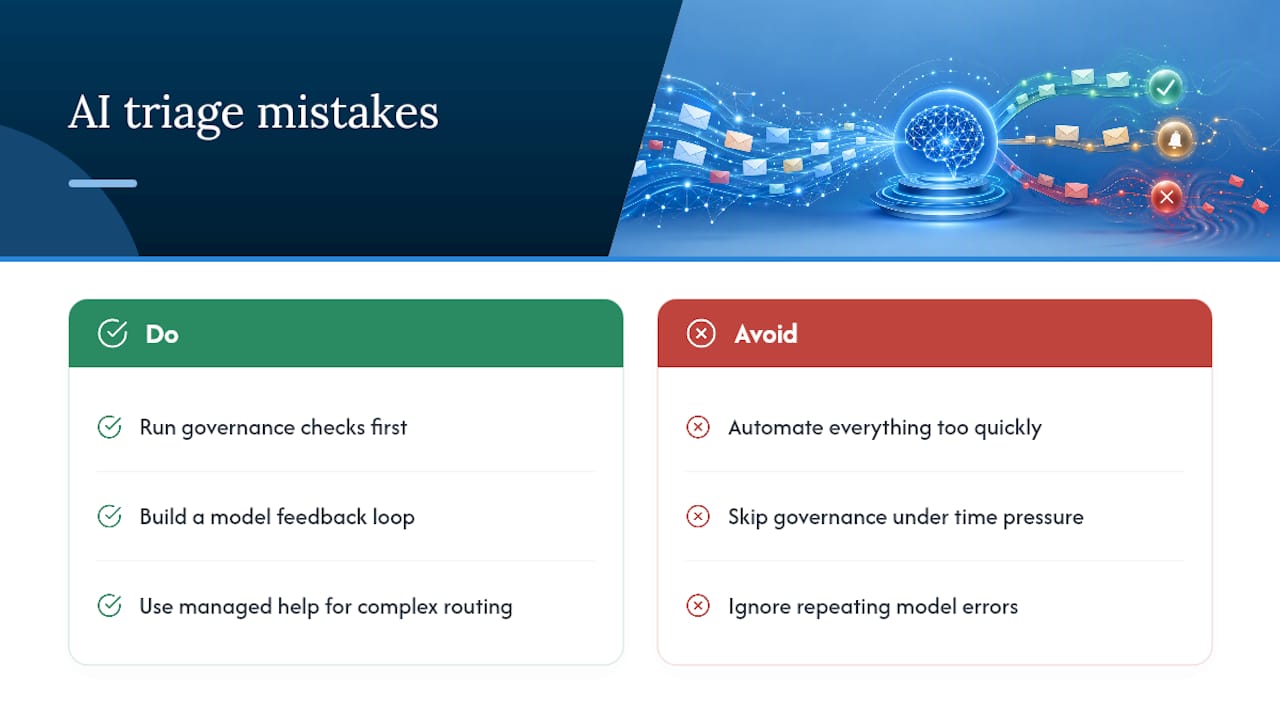
Cloud 9 has seen the same three mistakes recur across firms rolling out email automation, whether through personalised email campaigns or full triage systems: over-automating too fast, skipping governance checks under time pressure, and never building a feedback loop, so the model’s mistakes just repeat forever.
Businesses that get it right, particularly in professional services firms automating routine enquiries, typically see faster response to genuinely urgent messages and fewer enquiries lost in the noise. The clearest signal you need managed help rather than a DIY flow: your mail routing already touches CRM records, multiple shared mailboxes, or compliance-sensitive correspondence. At that point the governance work involved usually outweighs the setup itself.
Is the hype around AI email triage actually justified?
Most of the advice circulating on this topic treats triage as a model-accuracy problem. It isn’t, not primarily. The technology to classify “urgent” versus “FYI” has been good enough for years; what actually derails pilots is governance sequencing, teams skipping the consent and access-scope conversation because it feels like paperwork, then discovering three weeks in that nobody agreed what “urgent” meant in the first place.
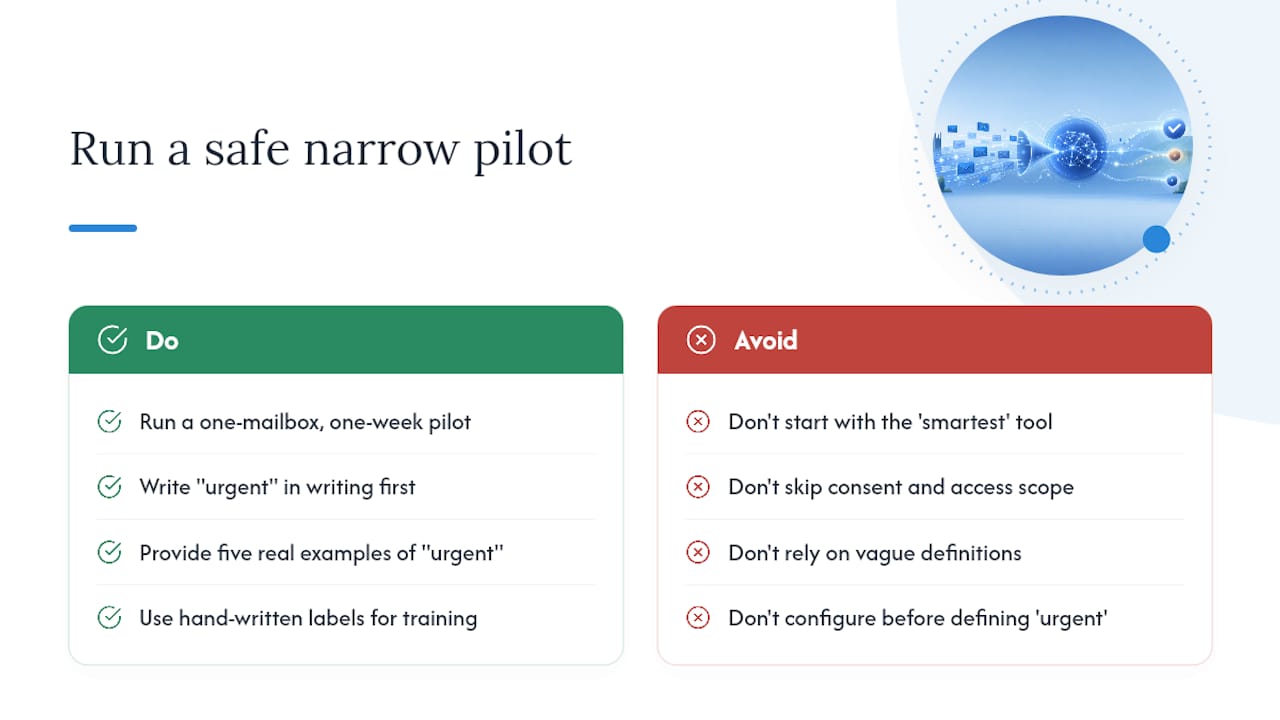
The conventional wisdom says start with the smartest tool. The evidence points the other way: start with the narrowest, most boring pilot you can run, on one mailbox, for one week, with hand-written examples of each label. Accuracy improves fast once the definitions are tight. It barely improves at all if they’re vague, no matter how capable the underlying model is.
If there’s one thing to prioritise first, it’s this: decide what “urgent” means in writing, with five real examples, before you touch any configuration screen. Everything else, the platform, the vendor, the thresholds, is easier to fix later than a fuzzy definition baked into week one.
— Rob
Ready to move from pilot to managed AI triage?
If you’re weighing up an agent layer, a client-layer app, or building your own flow, there’s a fourth option worth considering: let someone who’s already run these pilots do the scoping and the governance checks for you. Cloud 9’s One Week Pilot covers objective-setting, secure mailbox connection, Office 365 configuration, and the basic governance checks this guide walks through, without you having to become an app-registration expert overnight.
It suits professional firms and membership organisations juggling multiple shared mailboxes, businesses where CRM integration is already part of the picture, and anyone who wants a working answer in a week rather than a half-finished project in three months. Some firms move from a scoped pilot straight into confident rollout once the governance work is done. Explore Cloud 9’s AI automation services or get in touch to scope your One Week Pilot.
Where to go next for setup detail
For the exact steps behind a custom automation flow, Microsoft’s Power Automate triage tutorial covers prerequisites and flow-building in full. For native Gmail features, see Google’s own Gmail overview. For real-world automation examples, read Cloud 9’s guide to email automation in business growth.
Sources
- Tutorial: Triage incoming emails with Power Automate
- Gmail: Secure, AI-Powered Email for Everyone | Google Workspace
FAQ
What Is AI Email Triage?
AI email triage is the automated sorting of incoming email by urgency, intent, or category, using classification models to route, flag, or draft responses before a human even opens the message.
What Is the Best Way to Triage Emails?
The most reliable approach for small and medium firms is a narrow, monitored pilot, defining two or three clear labels with real examples, testing on one mailbox for a week, then expanding only once accuracy and false-response rates meet a set threshold.
Can ChatGPT Organise My Emails?
General-purpose AI chatbots can draft summaries or replies when you paste in email text, but they don’t connect to your inbox or apply rules automatically without a dedicated flow or agent layer built on top, such as a Power Automate classification flow.
Is It Safe to Use AI for Business Emails?
It’s safe for low-risk categories like acknowledging general enquiries, provided you check data processing locations, apply least-privilege access, and keep a human in the loop for anything touching personal data or professional advice.
How Long Until AI Triage Becomes Accurate?
Most pilots reach useful accuracy within three to seven days on a subset of mailboxes, provided the urgency labels are defined with specific examples rather than vague descriptions.