HubSpot’s native QuickBooks Online integration already exists, and it syncs core objects including Contacts to Customers, Products to Products & Services, Invoices, and Credit Memos. The practical payoff is straightforward. Your sales team stops re-typing customer and invoice data into accounting software, and deals won in HubSpot can generate invoices in QuickBooks without a finance admin lifting a finger.
TL;DR:
- Ensuring admin permissions and deduplicated records in HubSpot and QuickBooks prevents errors and duplicate customer creation during setup and ongoing sync.
- Filtering records by date and status, along with proper object mapping, safeguards data consistency and avoids conflicting sync loops between HubSpot and QuickBooks.
- Creating invoices automatically from deals requires mapping contacts, matching products, and adding filters to prevent duplicate records triggered by workflow actions.
- The native integration works well for standard objects but may need custom tools or professional help if dealing with non-standard requirements or complex workflows.
- Testing with small data batches and monitoring sync health weekly during initial rollout minimizes errors and ensures reliable ongoing operation.
Table of Contents
- What do you need before connecting QuickBooks and HubSpot?
- How do you connect QuickBooks Online to HubSpot?
- How should you configure sync direction and filters?
- Which workflow actions turn deals into invoices automatically?
- What are the integration’s main limitations, and how do you fix common errors?
- What should you check before switching on full sync?
- Native integration or something custom: Cloud 9’s view
- Where to check the official setup details
- Get expert help setting up your CRM and accounting sync
- Sources
- FAQ
What do you need before connecting QuickBooks and HubSpot?
Most failed setups trace back to permissions, not software. Before you touch the App Marketplace, check who has the authority to authorise the connection and what your QuickBooks account actually supports.
- You need Super Admin access or App Marketplace permissions in HubSpot to install and configure the app.
- You need to sign in with an admin user in QuickBooks Online when authorising the connection.
- There is no sandbox option. HubSpot only connects to a live, production QuickBooks company file, so test carefully rather than experimentally.
- Certain workflow actions and advanced sync features depend on your QuickBooks Online subscription plan, so verify your subscription before promising finance a full automation build.
- Before connecting, dedupe your contact and product records in HubSpot, and confirm your tax codes and nominal codes in QuickBooks match what you expect to see on synced invoices.
That last point matters more than it sounds. A messy contact list doesn’t just look untidy, it actively creates duplicate customer records in QuickBooks the moment sync goes live.
How do you connect QuickBooks Online to HubSpot?
The connection itself is quick. The guided setup that follows is where the real configuration happens, and it’s worth slowing down for.
- Go to the HubSpot Marketplace, search for the QuickBooks Online app, and start the install.
- Sign in to QuickBooks when prompted and authorise the connection using an admin account.
- Work through HubSpot’s Guided Setup, where you choose which objects to sync and set your initial field mappings.
- Run an initial test sync on a small batch of records, then check the sync health dashboard before switching everything on.
The guided setup asks you to confirm mappings for each object rather than assuming defaults are correct, which is deliberate. HubSpot would rather you spend ten extra minutes here than spend a week untangling mismatched customer records later.
Pro Tip: Connect a handful of test contacts and one test invoice first. Watch how they land in QuickBooks before you enable sync for your full customer base. It’s far easier to fix five records than five thousand.
How should you configure sync direction and filters?
Getting the object mappings right during guided setup is only half the job. The direction each object syncs in, and the filters you apply, determine whether your data stays clean six months from now.
Contacts and Products typically sync two ways by default, so a name change in HubSpot updates QuickBooks and vice versa. Invoices and Credit Memos usually work better as one-way from HubSpot to QuickBooks, since finance teams need a single source of truth for what’s actually been billed. Letting invoice edits flow both directions invites conflicting records.
- Filter by date range so you only sync records created after your go-live date, not your entire historical customer base.
- Exclude specific invoice statuses (draft, voided) from syncing until they’re finalised.
- Add a source exclusion filter to stop records the integration itself creates from re-triggering another sync pass.
- Review the recommended filters HubSpot suggests during setup rather than accepting the broadest possible sync scope.
On timing: HubSpot detects changes and pushes them to QuickBooks within minutes, but changes made inside QuickBooks typically take around 30 minutes to appear back in HubSpot. If you need something reflected sooner, most setups include an on-demand sync option you can trigger manually rather than waiting out the cycle.
That asymmetry catches people out. A sales rep updating a deal expects near-instant reflection everywhere, and QuickBooks simply doesn’t work on that clock.
Which workflow actions turn deals into invoices automatically?
This is where the integration earns its keep for finance and sales alike. HubSpot workflows can trigger QuickBooks actions directly, which means the invoice gets created the moment a deal actually closes, not whenever someone remembers to raise one.
- Create invoice: generates a QuickBooks invoice from a HubSpot deal, typically triggered on “deal stage = closed won.”
- Create estimate: pushes a quote into QuickBooks while a deal is still in negotiation.
- Create sales receipt: logs an immediate payment, useful for one-off transactional sales rather than invoiced credit terms.
None of these actions succeed on their own. The deal’s associated contact must already be mapped to a QuickBooks customer, and any products on the deal need to match existing QuickBooks items. Skip either and the workflow simply fails silently rather than creating a broken invoice.
Pro Tip: Add a “Source is none of [QuickBooks integration]” filter to every workflow that creates records. Without it, a synced invoice can re-enter the workflow and trigger a duplicate creation loop.
What are the integration’s main limitations, and how do you fix common errors?
Two structural limits are worth knowing before you build anything on top of this integration. There’s no sandbox environment, so every test you run happens against your real company file. And some data flows are intentionally one-way to protect financial reporting integrity, meaning a change made directly in QuickBooks won’t always flow back to HubSpot.
Most day-to-day errors fall into three buckets:
- Unmatched items: a product on a HubSpot deal has no equivalent in QuickBooks, so invoice creation stalls.
- Permission rejections: the QuickBooks user who authorised the app has since lost admin rights, breaking the connection silently.
- Duplicate contacts: unmapped or newly created contacts sync as new customers instead of updating existing ones.
- Open the sync health report first and read the specific error code before guessing at a fix.
- Reconnect the app using an active admin account if authorisation has lapsed.
- Audit new customer and product records created since the error appeared, and merge duplicates before resuming sync.
What should you check before switching on full sync?
Treat the first fortnight as a controlled rollout, not a switch you flip once and forget.
- Take a backup of your QuickBooks company file and note its exact name before you connect anything.
- Run deduplication in HubSpot and standardise product SKUs so QuickBooks matching doesn’t fail on naming mismatches.
- Start with a narrow date filter and a small batch of test records rather than syncing your entire history on day one.
- Assign one person as sync owner and set up alerts on the health dashboard so errors get caught within hours, not weeks.
Pro Tip: Give your sync owner calendar time in week one specifically to check the health dashboard daily. After that, weekly is usually enough, but the first week catches the mistakes that compound.
Native integration or something custom: Cloud 9’s view
For most SMEs, the native integration is the right call. It’s faster to deploy, has no separate licence to manage, and HubSpot maintains it directly rather than leaving you dependent on a third-party connector’s roadmap. Where it starts to strain is non-standard objects, strict real-time requirements, or workflows that need logic the guided setup can’t express, so using a no-code app and automation platform can be a helpful alternative for extending integrations.
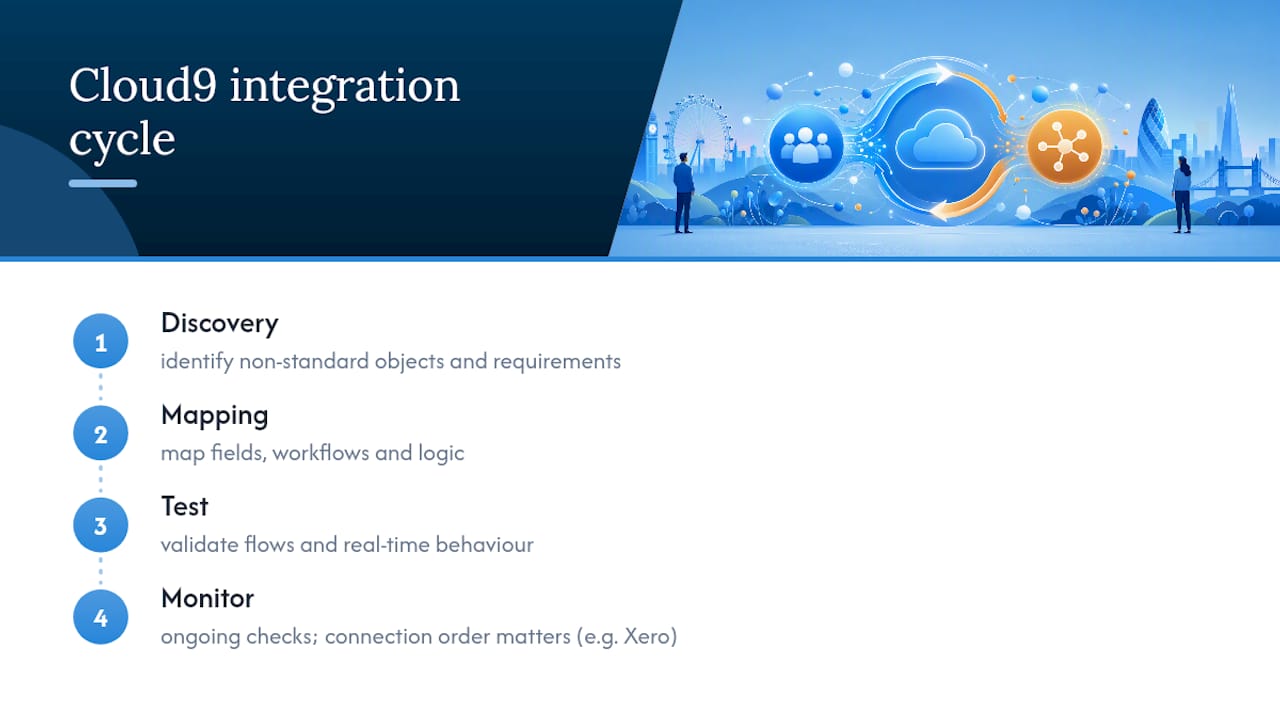
Cloud 9’s approach when clients need more than the native connector offers is a straightforward discovery, mapping, test, and monitor cycle, borrowed from broader systems integration practice rather than invented for this specific pairing. If your setup involves multiple accounting systems, Xero alongside QuickBooks for example, the order you connect things in matters more than most guides admit.
— Rob
Where to check the official setup details
For exact screens and current UI, HubSpot’s Guided Setup and workflow actions documentation covers the connection flow step by step. QuickBooks’ own support article on connecting and importing deals and its App Store listing confirm plan requirements before you commit.
Get expert help setting up your CRM and accounting sync
Cloud 9 is the practical alternative to piecing this together yourself over a stressed weekend, or paying an agency that only knows HubSpot and shrugs at QuickBooks. We work across both sides of the connection, so the mapping, the workflow automation, and the ongoing monitoring all sit with one team rather than being split between your CRM vendor and your accountant’s IT contact.

If your business has outgrown a simple native connection, whether that’s multiple entities, non-standard products, or workflows the guided setup can’t handle, our CRM and marketing automation service builds the mapping and monitoring around how you actually invoice, not a generic template. Get in touch for a discovery call and we’ll tell you honestly whether the native integration covers your case or whether it’s worth building further.
Sources
- Connect HubSpot and QuickBooks Online — HubSpot Knowledge
- Connect to HubSpot and get deals into QuickBooks Online Advanced — QuickBooks Support
FAQ
Which CRM is best for integrating with QuickBooks Online?
HubSpot has one of the most mature native QuickBooks Online integrations available, syncing Contacts, Products, Invoices, and Credit Memos directly with guided setup and health reporting built in. The right choice ultimately depends on your existing sales process, but HubSpot’s direct object mapping means fewer workarounds than many alternatives.
Why do some accountants dislike QuickBooks Online integrations?
Accountants are often cautious about integrations because some data flows are deliberately one-way to protect the accuracy of financial reporting, meaning changes made in QuickBooks don’t always reflect back in the CRM. That’s a safeguard against reports being altered by external sync activity, not a flaw, but it does require finance teams to understand which direction data actually flows.
Does QuickBooks offer API integrations?
Yes, QuickBooks Online supports API-based integrations, which is what powers native connections like the HubSpot integration as well as custom builds for businesses with non-standard requirements. Most SMEs won’t need to touch the API directly since the guided setup handles the connection for them.
Does HubSpot integrate with Microsoft 365?
Yes, HubSpot offers native integrations with Microsoft email and calendar products, separate from the QuickBooks connection. Businesses running both often connect them independently rather than expecting one integration to cover everything.
How do I connect QuickBooks with HubSpot without losing existing data?
Deduplicate your HubSpot contacts and standardise QuickBooks product names before connecting, then run the sync on a small test batch first rather than your full database. Checking the sync health report after that first test catches unmatched items and permission issues before they affect your entire customer list.